Profile and settings
The Profile (person icon at the bottom of the left bar) gathers everything a user sets only for themselves. None of it affects other users or the company's data. Every change is saved immediately and applies on all devices the person signs in on.
Display mode and design
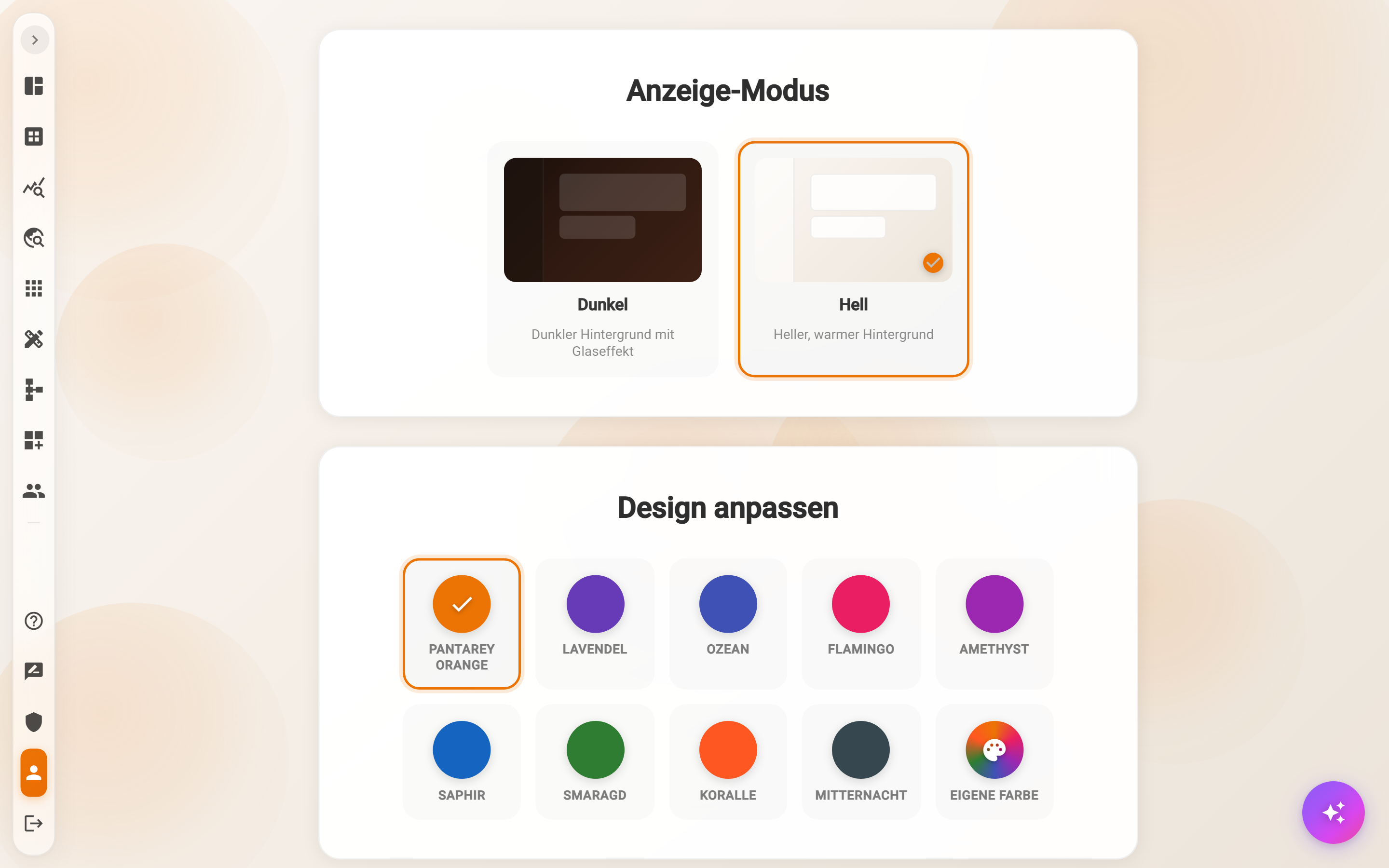
- Display mode: Light (light, warm background) or Dark (dark background with glass effect).
- Customize design: nine color schemes from Pantarey Orange through Lavender, Ocean, Flamingo, Amethyst, Sapphire, Emerald and Coral to Midnight, plus Custom color with a freely chosen hue. The scheme colors buttons, highlights and icons.
Language
Language switches the interface between German and English. Names of processes, data schemas and fields stay as they were created.
Email notifications
Three switches determine which e-mails arrive: New tasks for me, New tasks for my groups and Errors in my processes. Details and what happens when they are switched off under Email notifications.
Dashboard cards
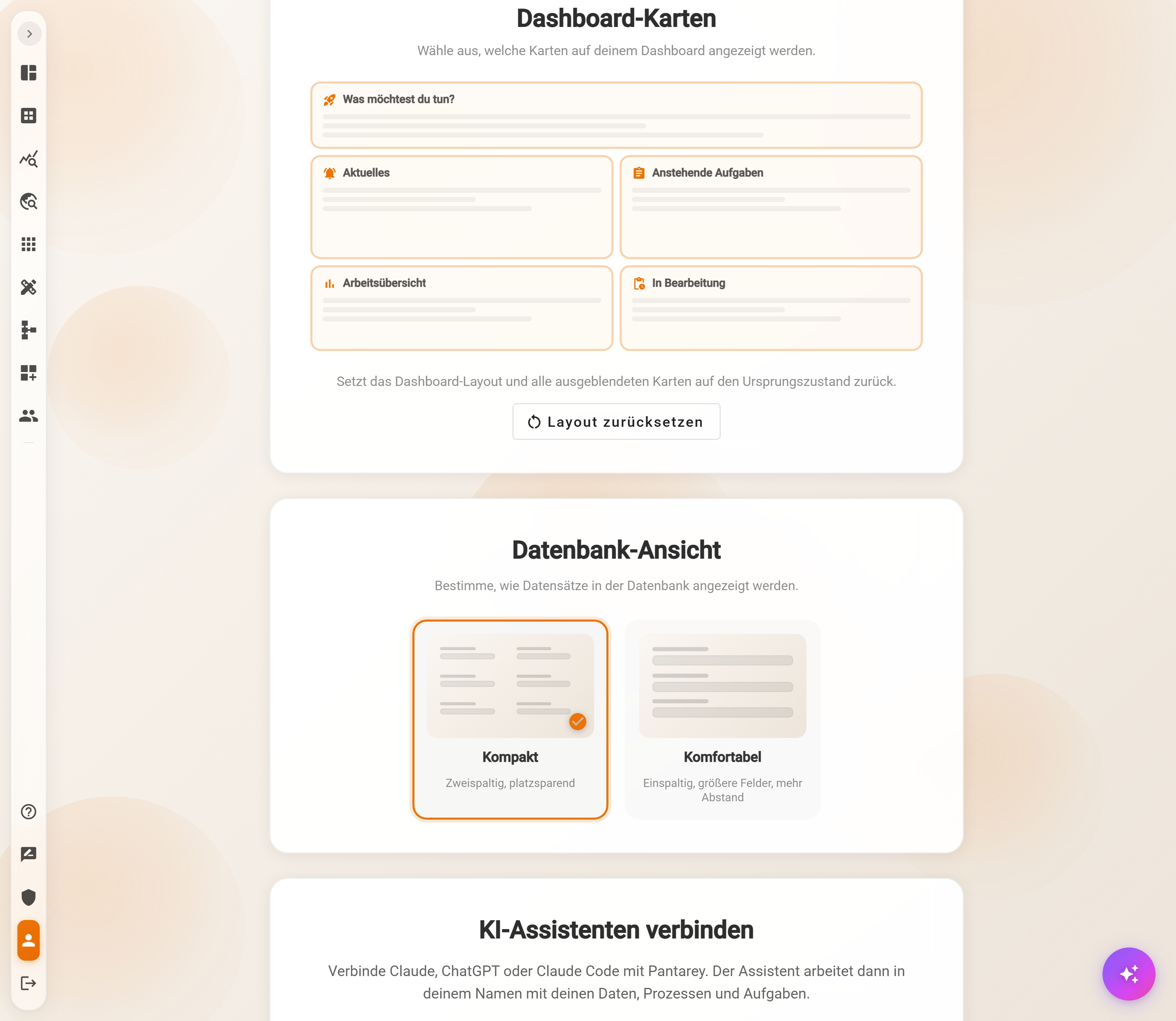
This is where it is set which of the five cards the Overview shows: What would you like to do?, Activity, Pending tasks, Work overview and In progress. A click on a tile hides the card or shows it again. Reset layout restores the original state: all cards visible, Work overview and In progress minimized in the footer bar.
In the Overview itself, each card can be minimized via the icon at the top right; it then moves to the footer bar as a button and comes back with a click. The help button of each card explains it briefly.
Database view
Compact shows records in the Database in two columns and space-saving, Comfortable in one column with larger fields and more spacing.
Connect AI assistants
Whoever has the role for it finds the server address of the account here and the instructions for Claude, ChatGPT and Claude Code, see Setup.
Advanced
For diagnostics and support:
- Log output: how much detail the app logs in the browser; change only at the request of support.
- Reset onboarding: shows the welcome dialog again at the next sign-in.
- Milestones: hints that appear when certain steps are reached for the first time (designer opened, process started, template imported). Reset all shows them again.
- Overview: Reset overview restores the default layout of the cards. Clear activity, Clear work overview and Clear in progress delete the cards' cached data; it is rebuilt at the next load.
Frequently asked questions
Do the settings also apply on the smartphone?
Yes. They belong to the user account, not to the device. After signing in on another device, color scheme, language and cards are the same.
A card of the Overview is missing.
Either it is minimized and sits as a button in the footer bar, or it is hidden under Dashboard cards. Reset layout brings everything back.
Can the administrator prescribe the Overview?
The administrator determines via roles and groups which processes, dashboards and areas an account sees. Colors, language and cards remain up to the user.
Next step
Help, feedback and what's new: guided tours, support and what is new in the current version.