Groups
A group bundles users to whom something is assigned jointly: tasks from processes, dashboards, permissions on records. Groups are maintained under Users → Groups by people with the role Manage user groups or Administrator. A group grants no rights in the app by itself; what a person may open is determined by their roles.
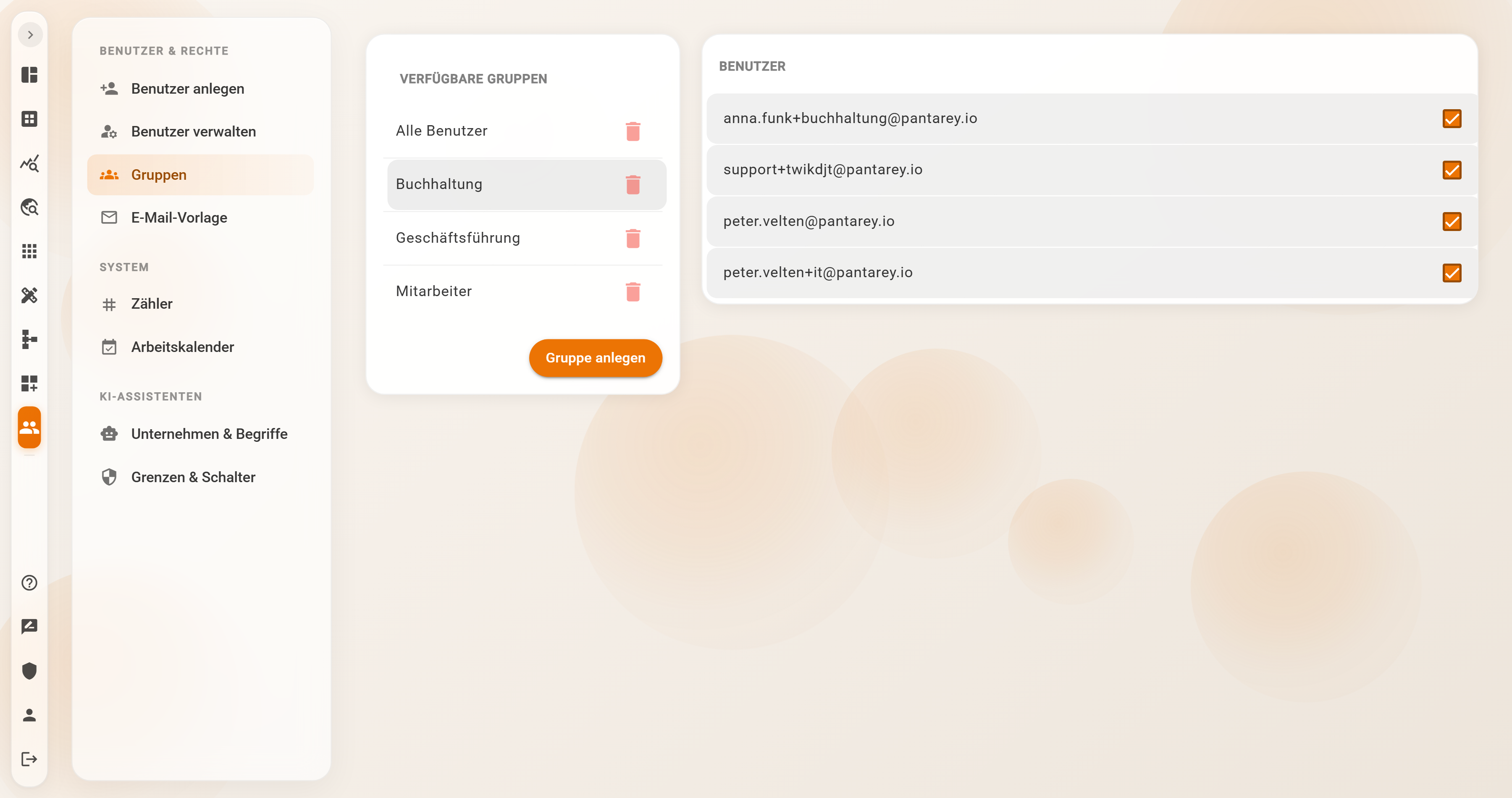
The page
- On the left Available Groups: all groups of the account, each with a trash icon. A click on a name selects the group. On the smartphone, Search groups filters the list.
- On the right Users: all user accounts with their email address. A check mark means member of the selected group. Without a selection it reads "Select a group".
Creating a group
Create Group (on the smartphone the plus in the header bar) opens the dialog Create New Group with the field Group Name. Create saves; the new group is briefly highlighted and immediately selected. A name that already exists is rejected: "A group with this name already exists."
The name is also the key of the group. It is entered in processes, dashboards and permissions exactly as it appears here and cannot be changed later.
Assigning members
A click on a person in the Users list sets or removes the check mark and saves immediately, confirmed with "User added successfully." or "User successfully removed from group." A person can be in any number of groups. The change applies at once: the group's tasks appear the next time the Overview loads, emails for group tasks arrive from the next task on.
Deleting a group
The trash icon asks for confirmation: Confirm Delete Group – "Are you sure you want to delete this group?" – Yes, delete permanently. Afterwards the group and all memberships are gone. The user accounts themselves remain unchanged.
Usages are not checked
Deleting does not check whether the group is still entered anywhere. Open tasks for the group, user tasks and start events in processes, dashboard and menu assignments, and record permissions that name the group remain in place and lead nowhere: nobody belongs to the group any more, so nobody sees the task or the dashboard. Before deleting, switch the usages in the Process Designer, Dashboard Designer and Data Designer.
Renaming
A group cannot be renamed. The way is: create a new group with the desired name, set the members, switch all usages (processes, dashboards, menus, permissions) to the new name, redeploy the processes, and only then delete the old group.
What groups are used for
| Where | Effect |
|---|---|
| User task in the Process Designer | Who should perform the task? = group: all members see the task under Pending tasks, it is completed once. |
| Start event User start | The process's start tile appears only for the members. |
| Email notifications | The switch New tasks for my groups in the profile sends every member an email per group task. |
| Record permissions in the Data Designer | A group is the principal of a permission; a person's rights are their own plus those of their groups. |
| Dashboards and menus | Assignment to groups; only members see the dashboard or menu. |
| Forms | Field type group (user-group-select): selection of a group in the form, for example the responsible team. |
| Predefined services in the process | List all groups, Get user groups, Get group members, Add user to group, Remove user from group. |
Example
Musterfirma GmbH, an IT service provider in Augsburg, gets by with four groups: Mitarbeiter (all employees, receive the start tiles for leave requests and expenses), Buchhaltung (invoice approvals and the dashboard Open items), Geschäftsführung (approvals above 5,000 euros, read access to all records) and Alle Benutzer (assignment for the general dashboard, including temporary staff). When Lena Berger joins support, the IT lead ticks Mitarbeiter and Alle Benutzer; he does not have to touch roles or processes for that.
Frequently asked questions
A member does not see the group's tasks.
Check whether the check mark is set for the person and whether the group name in the process is spelled exactly as under Available Groups. Reload the Overview once. For the task page the person also needs the role Overview & worklist.
Is there a group with all users?
Not by itself. Dashboards and menus can be assigned to All users without a group. For tasks and permissions, a dedicated group is created to which new users are added by hand, like Alle Benutzer at Musterfirma.
Can a group be given rights in the app, such as the Process Designer?
No. Roles apply per person and are set under Manage users → Permissions. Groups only control to whom something is assigned.
How many groups and members are possible?
There is no upper limit. It stays manageable with one group per team or task.
Next step
Email template: adapt subject and content of the invitation to new users.