AI in Pantarey
Besides the connected assistants, AI works in several places in Pantarey itself. These helpers need no setup and no MCP role; they are open to everyone who may operate the respective area. This page shows where they are and what they do.
AI service tasks in processes
A process can contain AI steps, just as it sends e-mails or generates PDFs. In the Process Designer they are listed under Available service tasks, all with the prefix "AI:":
| Service task | What it does |
|---|---|
| AI: Extract structured data | reads defined fields from a text, for example invoice number, date and amount |
| AI: Extract data from OCR | the same from the text of a scanned document |
| AI: Classify document | assigns a document to a category, for example invoice, delivery note, quote |
| AI: Extract key values | finds key-value pairs in free text |
| AI: Extract keywords | generates keywords for a text |
| AI: Summarize text | summarizes a text |
| AI: Translate text | translates into a target language |
| AI: Generate text | writes a text according to instructions, for example a reply or a description |
| AI: Anonymize text (GDPR) | removes personal data |
| AI: Query JSON content, AI: Query Markdown content | answer a question about a data object or document |
| AI: Assign task (routing) | picks the responsible role or group from a description |
As with every step, the result is stored under the result path in the process data and can be checked, saved or presented to a person for review in the next step. A typical sequence: upload PDF, Analyze PDF, AI: Extract data from OCR, user task "Review", save record. Inputs and results of the individual services are described under Predefined services.
Have it reviewed
AI results are suggestions. For amounts, names and decisions, a user task has proven useful in which a person sees the result and confirms or corrects it before it is saved.
Creating a process with AI
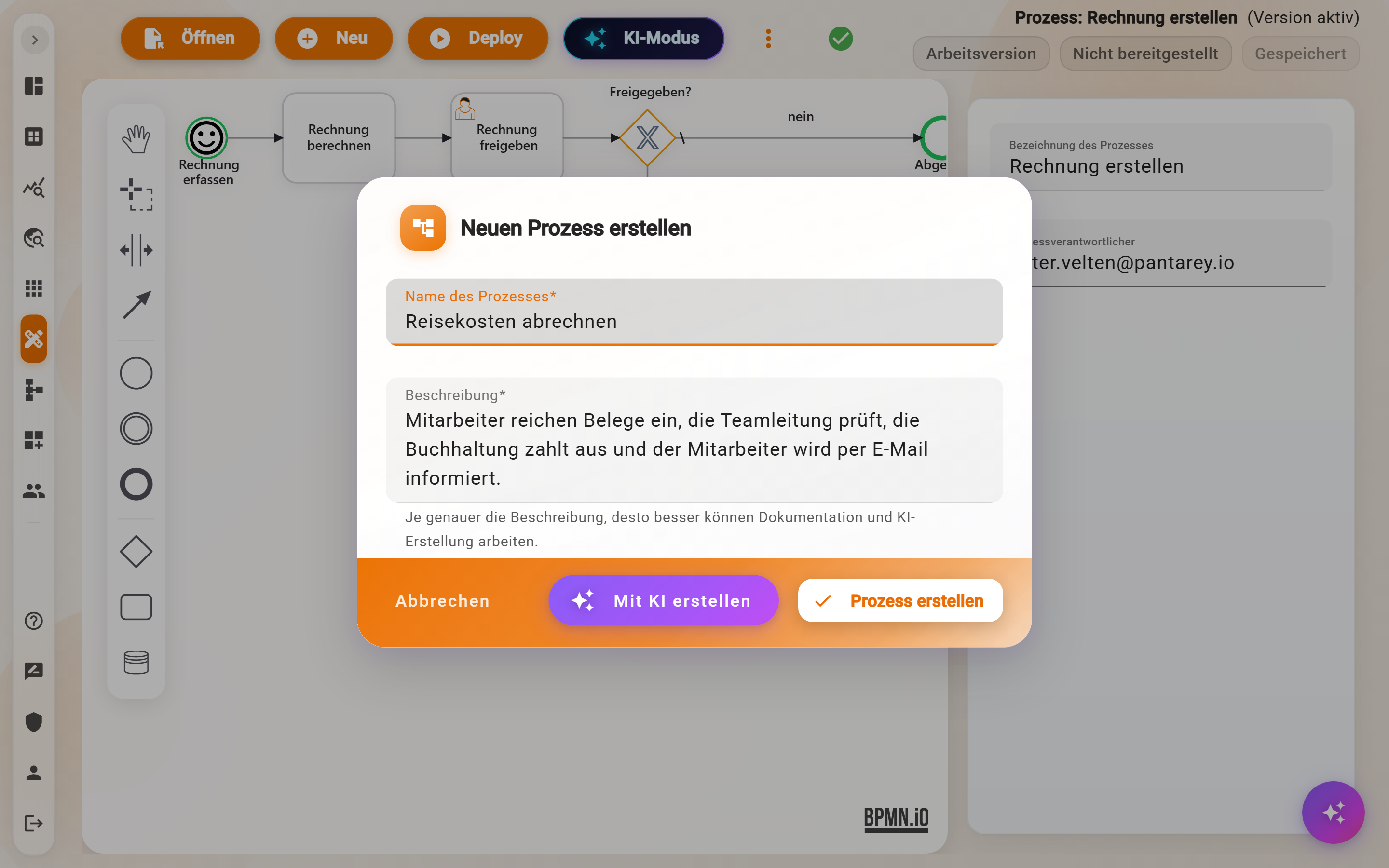
In the Process Designer, New opens the dialog Create new process. Next to Create process, which creates an empty process with start and end, there is Create with AI: from name and description, the AI generates a first draft with steps, gateways and connections. The more precise the description, the more useful the draft. It is a starting point that is edited further in the designer like any other process and only takes effect after deployment.
Those who prefer to build the process step by step in a conversation and watch it being made use a connected assistant in AI mode.
Creating a data schema with AI
In the Data Designer, the dialog Create new data schema also offers Create with AI: from name and description, the AI suggests suitable attributes and creates the schema with them. It can then be edited like any other schema. In the dialog New attribute, the AI button next to the description generates a suggestion for the description text from the display name; good descriptions later help forms, analyses and the connected assistants.
Creating an SQL query with AI
In Data analytics, the star icon next to Run query opens the AI helper: the question is entered in one's own words ("Count orders per month"), the relevant tables are ticked, Ask Panda writes the query, Apply puts it into the editor. There it is run like any query and adjusted if needed. More under Data analytics.
Creating a schedule with AI
For a start that runs at set times, Pantarey requires a schedule in technical notation, for example cron(0 7 ? * MON-FRI *). The AI button at the schedule generates it from a description such as "Monday to Friday at 7:00". The time applies in the selected time zone.
AI query on dashboards
The AI query widget answers questions about the data directly on a dashboard: "How many invoices are overdue?" returns a number, "Revenue per customer this year" a table. The creator of the dashboard defines which data schemas the AI may access; proven questions can be stored as saved queries. More under AI query.
Usage
Every AI call in Pantarey consumes AI tokens, which belong to the account's plan. Under Account → Plan & usage, the dimension AI tokens shows how much has been used in the current month, how much is included in the plan and whether a usage limit is set. In Data analytics, the predefined query AI requests per month counts the calls of the AI helpers per month and context. Connected assistants, by contrast, do not consume Pantarey AI tokens: they run at the assistant's provider; Pantarey only counts their calls against the hourly limits.
Frequently asked questions
Does the built-in AI need a role or a switch?
No. The switches under Limits & switches only affect connected assistants. The AI helpers are open to everyone who may operate the respective area; AI service tasks run in the process like any other step.
Where does the data go?
AI service tasks and AI helpers run through Pantarey's AI services within the platform. A connected assistant, by contrast, receives the tool answers directly; there, the data protection terms of the respective provider apply. More under Data protection and security.
How accurate are the results?
Good enough for suggestions, not for unchecked postings. That is why an AI step with numbers or names should be followed by a check, via a user task or a rule in the data schema.
Next step
Tools: the reference of all tools a connected assistant can use.