AI query (AI Query Widget)
In the widget “AI query”, a question about the data is asked in plain words, for example “Gross revenue per customer this year”. The AI writes a query over the released data schemas and shows the result as a number or as a table. This answers spontaneous questions without setting up a separate widget with SQL first.
Typical use cases
| Question | Result |
|---|---|
| “How many invoices are overdue?” | a number |
| “Gross revenue per customer this year” | a table |
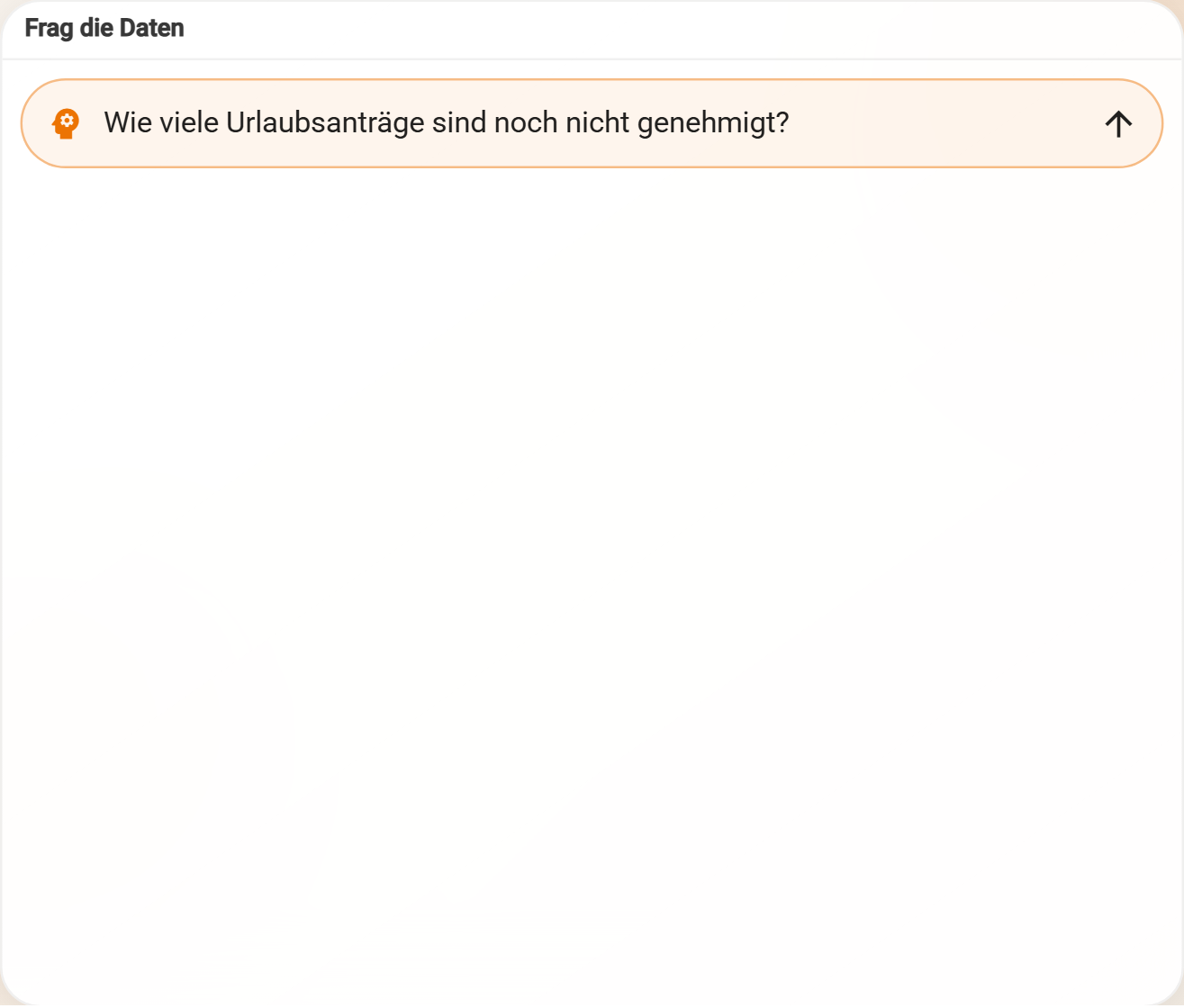
| “Which vacation requests are not yet approved?” | a table |
| “Average invoice amount in the last quarter” | a number |
Usage
- Enter the question in the field “Ask a question about the data…” and Submit question.
- While the AI works, the widget shows the progress (“Understanding the question…”, “Looking for matching data…” and more).
- The result appears with a short explanation, as a number (if the query returns exactly one value, with a unit such as € or %) or as a table with up to 100 rows.
- Show query reveals the generated SQL query – useful for tracing what exactly was counted or summed.
- Save query stores the question under a name (up to 80 characters). Saved questions are listed under Saved queries as long as no result is open, and return the current value every time they are called.
- New question clears the widget for the next question.
A saved query is re-executed with the stored SQL when called; no new AI request is needed for that. The × on a saved query removes it immediately, without confirmation. The last result is kept in the browser and is there again after reloading, until New question clears it.
Setting up
- Add the widget AI query to the dashboard.
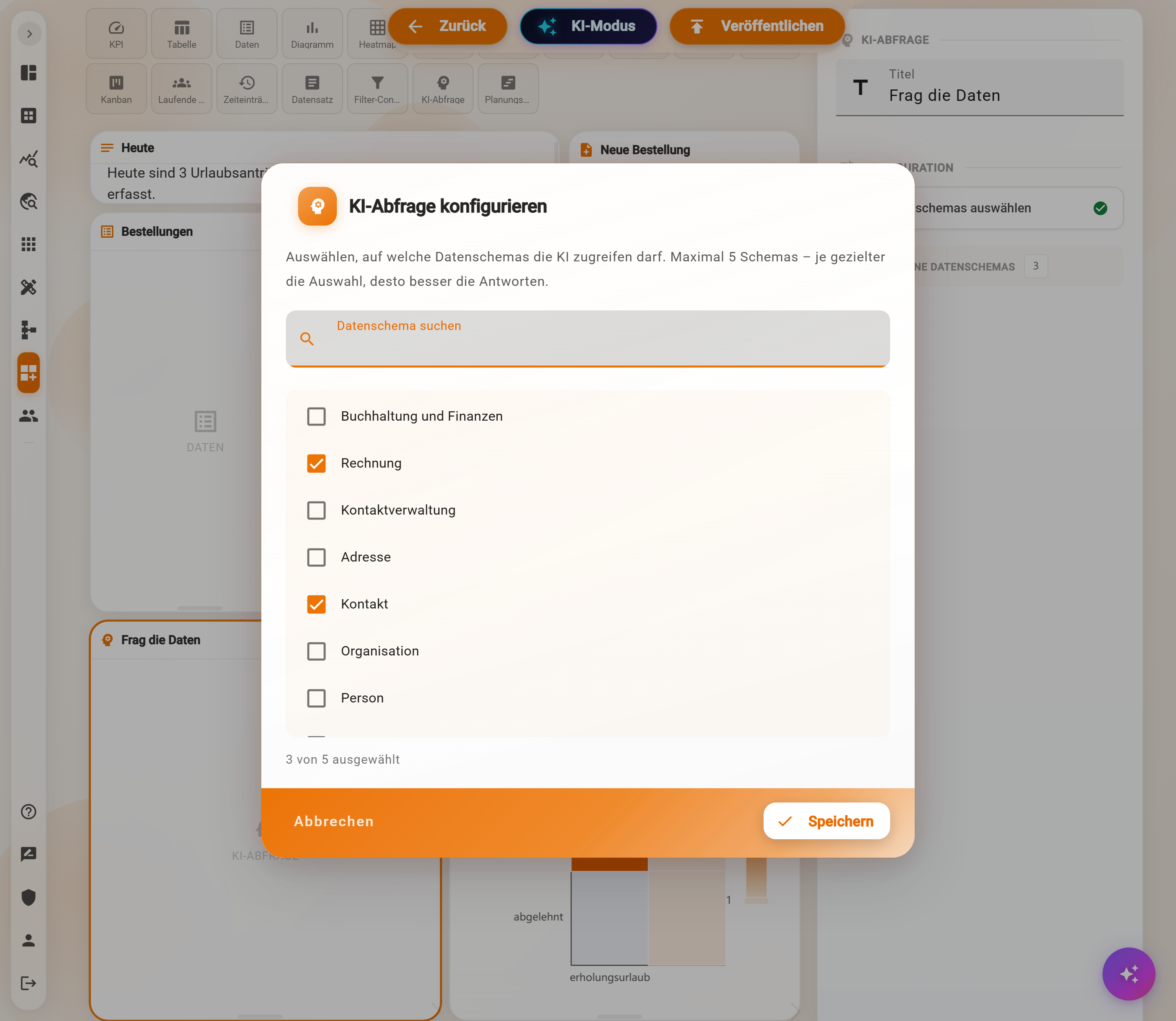
- Choose Select data schemas in the properties panel. The dialog Configure AI query opens.
- Select the data schemas the AI may access – at most five. The more targeted the selection, the better the answers.
- Save and publish the dashboard.
Without a release, the widget says “No data schemas released yet”.
Example
For accounting, the data schemas of invoices and contacts are released. Asked “Gross revenue per customer this year”, the widget shows a table with one row per customer. The question is saved as “Umsatz je Kunde” (revenue per customer) and is available with one click from then on.
Notes and limits
- Permissions: the generated query runs with the rights of the person asking. Only what this person is allowed to read is counted. The AI may only read; a generated query that would change something is rejected.
- AI tokens and duration: every new question consumes AI tokens and may take at most about 30 seconds. If it takes longer, “The question took too long…” appears – then a simpler wording or a smaller selection of data schemas helps.
- Saved queries belong to the person who saved them and appear in every “AI query” widget of this person.
- No filter container, no channels: the widget does not follow a Filter container.
- Refreshing: a number is reloaded when the dashboard is refreshed.
- Check the result: the AI may understand a question differently than intended. Show query allows checking which records and which time range were used. For fixed key figures over time, KPI or Table with their own query are the more reliable choice.