Administration: the Users area
Everything a company sets up centrally for its Pantarey account lives in the Users area (icon with two people in the left bar): user accounts, roles, groups, the invitation email, sequences, the work calendar and the settings for AI assistants. This chapter describes that area; it is called "Administration" here, while the menu entry in the app is Users. Personal settings such as language or color scheme belong to the Profile instead and are each user's own business.
Who sees the area
The Users entry appears in the left bar only with one of these roles: Administrator, Create users, Manage users, Manage user groups or Assign roles. The role View users does not open the area; it only allows the user list to be shown in form fields of type Person.
Inside the area, people without the Administrator role see only the menu group Users & Permissions. The groups System, AI assistants and Maintenance are reserved for the Administrator; the Email template can also only be loaded with that role. How roles are assigned is described under Manage users.
Layout
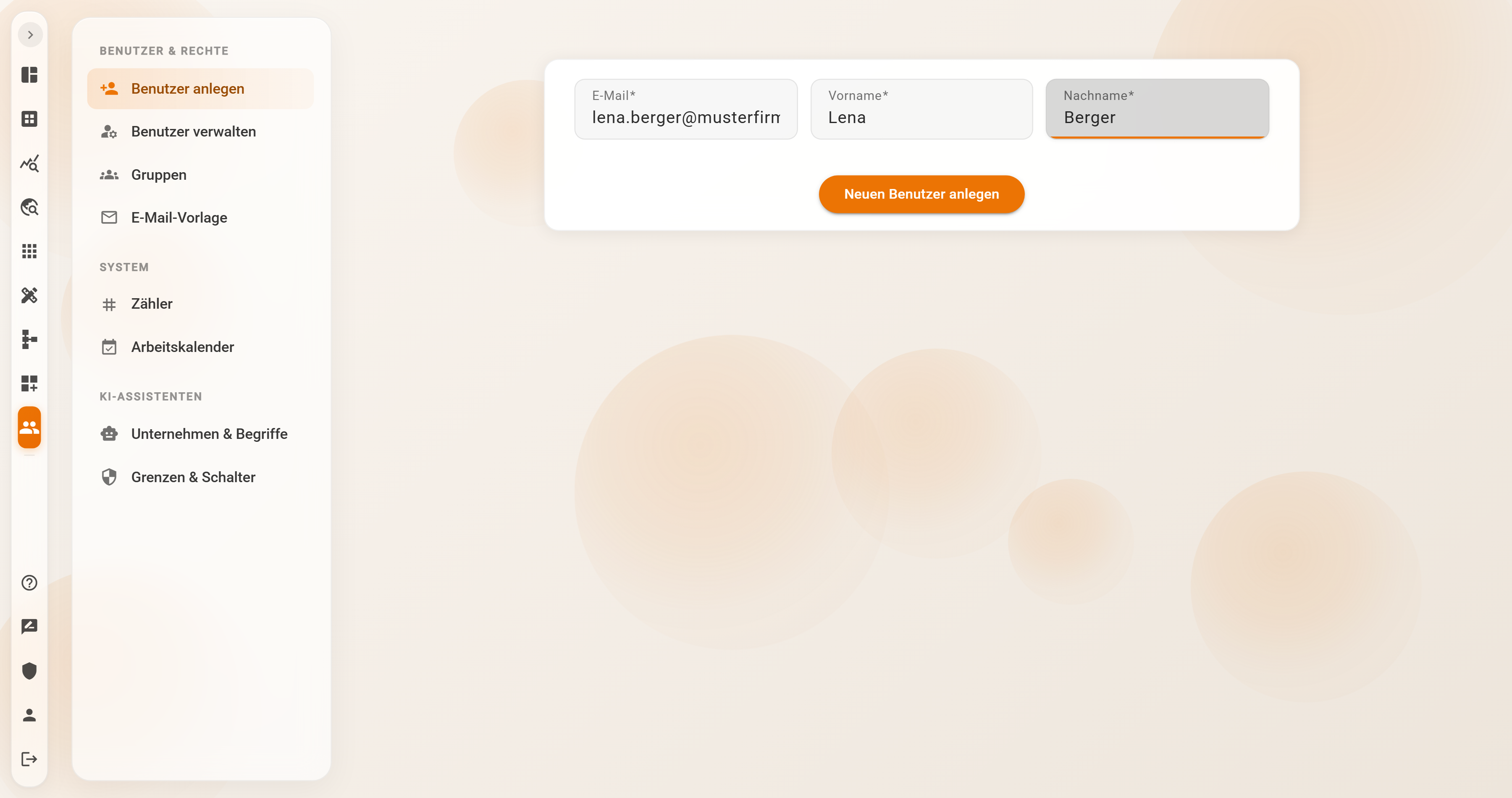
- Desktop: the sidebar on the left with the menu groups and their entries, the content on the right. When the area opens, Create user is selected.
- Smartphone: first a list of tiles with all entries; after a selection the content appears, with a breadcrumb in the header bar such as "Overview › Manage users › anna.funk@…". On mobile, the search for lists sits in the header bar.
The menu groups
Users & Permissions – for everyone who sees the area:
| Entry | Purpose |
|---|---|
| Create user | New user account with email and name; the person receives an invitation email. → Create user |
| Manage users | User card with status, reset password, lock, delete, and the role assignment in the Permissions tab. → Manage users |
| Groups | Create groups, assign members, delete groups. → Groups |
| Email template | Subject and HTML of the invitation email for new users. → Email template |
System – Administrator only:
| Entry | Purpose |
|---|---|
| Sequences | View, set or delete the state of running numbers (invoice and order numbers). → Counters |
| Work calendar | Federal state, local holidays and company days off that processes use to count working days. → Work calendar |
AI assistants – Administrator only:
| Entry | Purpose |
|---|---|
| Company & terms | Description of the company, terms, rules and a contact person for connected AI assistants. → Company & terms |
| Limits & switches | Emergency stop for AI assistants, switches for writing, processes and developer mode, limits per hour, approvals. → Roles, limits and security |
Maintenance – Administrator only, and only when the address of the area carries the suffix ?showReset (for example https://<account>.pantarey.io/administration?showReset):
| Entry | Purpose |
|---|---|
| Reset account | Maintenance functions for test and demo accounts: delete processes, dashboards, users, the data model or records, re-read the database, rebuild the search index. → Reset account |
Account and Profile
Two further entries of the left bar belong to the topic but sit outside the Users area:
- Account (shield icon), for the Administrator only: the booked plan with usage and usage limits, and the data export of the whole account as a ZIP. → Account
- Profile (person icon), for every user: display mode, color scheme, language, email notifications, dashboard cards. None of it affects other users. → Profile and settings
Roles, groups and record permissions
Three things govern who may do what in Pantarey, and they are maintained in three different places:
- Roles define what a person may do in the app: which areas they open (Database, Process Designer, Users …) and which actions are possible there. Assigned under Manage users → Permissions.
- Groups bundle people to whom something is assigned: tasks and start tiles from processes, dashboards and menus, permissions on records. A group grants no rights in the app by itself. Maintained under Users → Groups.
- Record permissions govern per data schema who sees, creates, changes or deletes which records, down to individual records if needed. Maintained in the Data Designer under Permissions and actions, for people or groups.
Example
Musterfirma GmbH, an IT service provider in Augsburg, uses Pantarey with twelve people. The management has the Administrator role and sees all four menu groups. The IT lead has Create users, Manage users and Manage user groups: he creates new employees, resets passwords and maintains the groups Mitarbeiter, Buchhaltung and Geschäftsführung, but sees neither Sequences nor the Work calendar. Everyone else does not see the Users entry and only adjusts their profile.
Frequently asked questions
The Users entry is missing from the left bar.
The account lacks one of the five roles from the section Who sees the area. An administrator assigns it under Users → Manage users → Permissions. The role takes effect with the next sign-in.
Sequences or Work calendar are not visible.
The menu groups System, AI assistants and Maintenance appear only with the Administrator role. Whoever only creates or manages users sees Users & Permissions exclusively.
Why is the chapter called Administration when the menu entry is Users?
The area grew out of user management and keeps that name in the app. By now it also contains system settings; the documentation groups that under the umbrella term Administration, but the instructions always use the label from the app: Users → ….
Next step
Create user: enter email and name, send the invitation, first sign-in.