AI mode
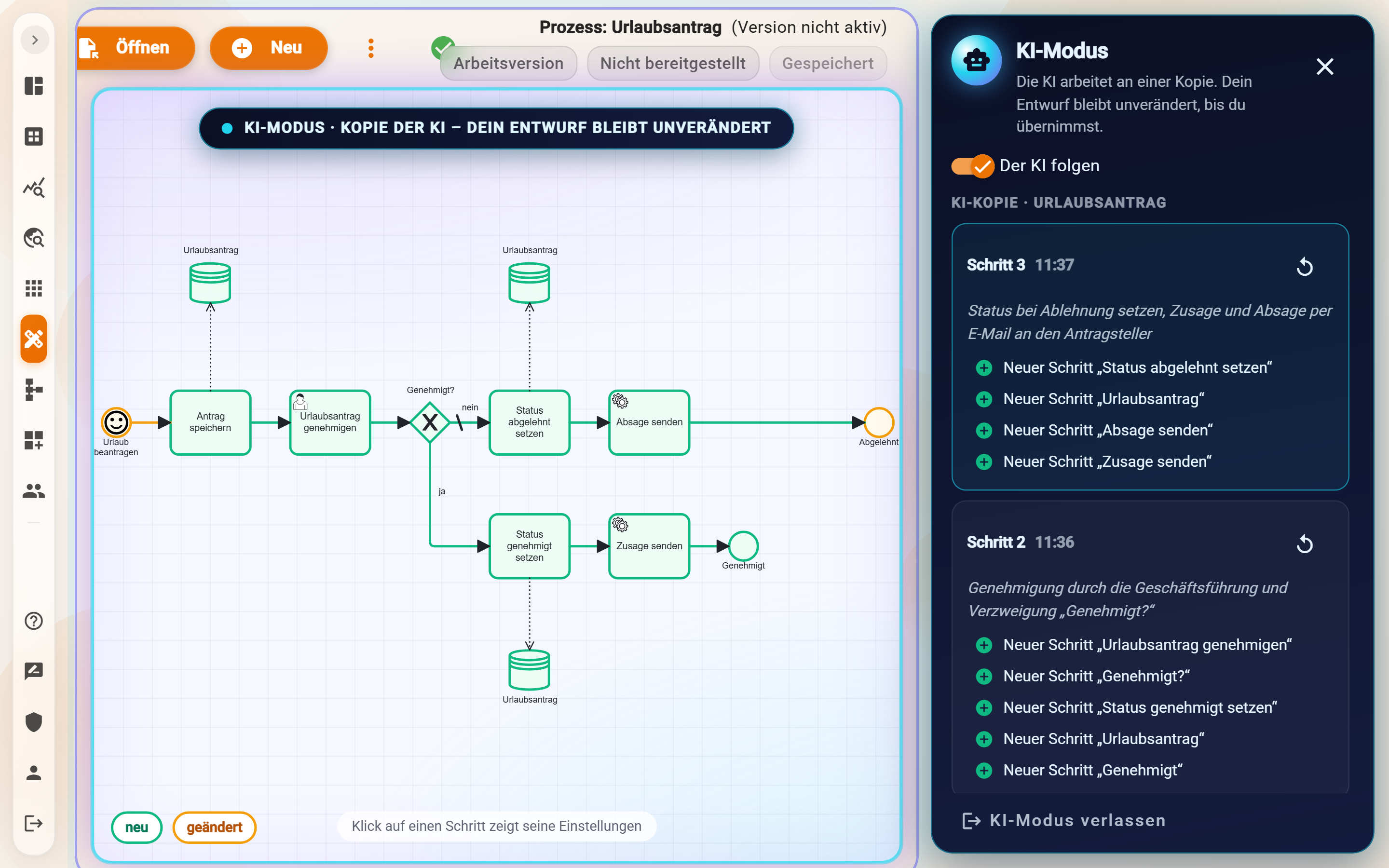
In AI mode the person building the process describes in their own words what should change, and the AI implements it: in a copy of the process, visible live, with acceptance at the end. The process itself remains untouched until Accept is pressed.
Sequence
- AI mode in the toolbar. Requirements: the working version is open, not locked, and AI is enabled for the account. If an autosave is still running, the Designer waits briefly ("One moment: your last change is still being saved").
- The banner AI mode · The AI has the controls appears at the top, the AI panel on the right. Type the request, for example "Insert an email to accounting after the approval".
- The AI works on the copy in steps; new and changed are marked in the diagram, each element can be clicked and checked. Further requests refine the result.
- Finish with Accept (the copy becomes the working version), Accept and deploy (additionally deploys, with the same check as the Deploy button), Undo last step, Discard or Leave AI mode (the copy is kept for later).
If the working version was changed by hand in the meantime, the Designer warns ("Your draft was changed since the AI started") and offers Accept anyway.
What the AI can do
Create, connect and configure elements: user tasks with assignment and form, service tasks with input, gateways with conditions, database steps, signals, additional starts by schedule or message, business labels, input and output data; up to 30 changes per request. Not possible are wait timers, a second user start and the removal of branches. It knows the data schemas and services of the account and follows the same rules as the Designer, see What the assistant can build. Anything blocked by validation is not accepted; values and secrets are not created by the AI.
Three ways to the AI
| Way | When |
|---|---|
| Create with AI in the "Create new process" dialog | a new process from a description, see Create a new process |
| AI mode in the Designer | changes to an existing process, with a view of the diagram |
| AI assistant (Claude, ChatGPT) via MCP | building in conversation outside the app; the assistant works on the same AI copy, Accept in the Designer is the approval, administrators can additionally require an AI approval, see Building with the assistant |
Create with AI writes directly into the new, still empty process; AI mode and the assistant work on the copy. In all cases, only what is deployed goes live. The AI consumption is shown under Account → Plan & usage, see AI in Pantarey.
Example
Musterfirma wants a check from €5,000 upwards before sending in the process "Rechnung erstellen". Request in AI mode: "Before the email dispatch a gateway: from €5,000 gross first a user task Check invoice for the management." The AI inserts gateway, task and flows and marks them as new; after a look at the condition, Accept and deploy follows.
Frequently asked questions
The AI mode button is missing or greyed out.
Either an older version is open, someone else holds the lock, or AI is not enabled for the account. The latter is set by administrators under Users → AI policy, see Roles and security.
What does a request cost?
Each request consumes AI quota of the account; the overview is under Account → Plan & usage.
Can the AI break a running process?
No. It works on the copy; only Accept changes the working version, only Deploy the running version.
Next step
Modeling tips: ten rules for maintainable processes.