Manage users
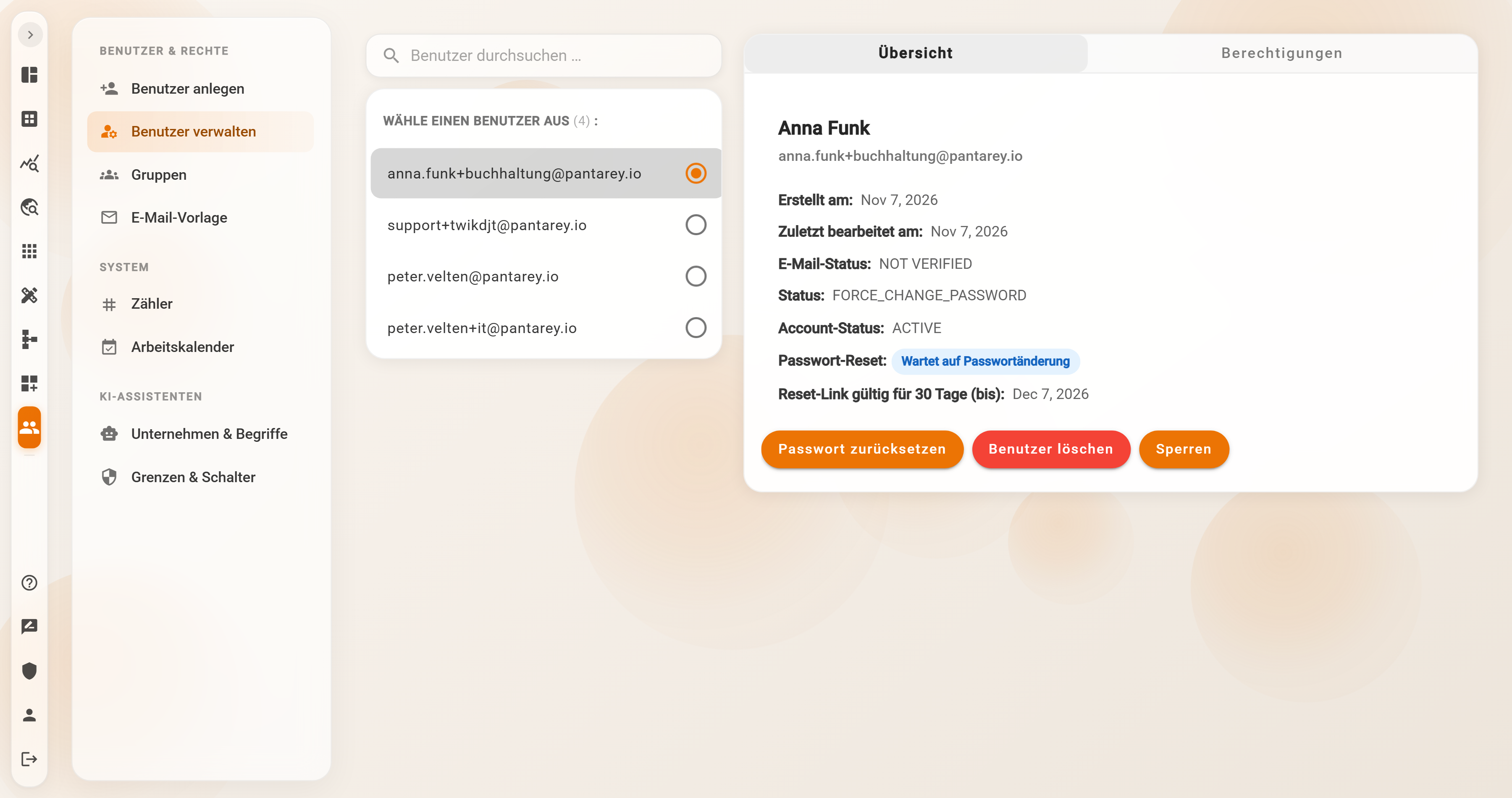
Under Users → Manage users every user account is shown with its state and its roles. On the left the list of all users, on the right the card of the selected account with the tabs Overview (status, reset password, lock, delete) and Permissions (roles). The role Manage users is enough for status and actions; assigning roles requires Assign roles or Administrator.
The user list
The list Select a user (n) shows only the email address per account; the number in brackets is the total number of accounts. The field Search users … filters by email, first and last name; on the smartphone the search sits in the header bar. There is no filter by status. Without a selection the right side reads "Select a user".
The list also contains the login support+<account>@pantarey.io. It is created when the account is set up and serves Pantarey support; it should be neither deleted nor locked.
Overview tab
The card carries first and last name as its title and the email address below. The values are shown as the sign-in service names them, that is in English:
| Row | Meaning |
|---|---|
| Created at, Last modified at | creation date and last change to the account |
| E-mail status | VERIFIED or NOT VERIFIED; irrelevant for signing in |
| Status | FORCE_CHANGE_PASSWORD: invited, the person has not yet set their own password. CONFIRMED: active, own password set. |
| Account status | ACTIVE (sign-in possible) or LOCKED (locked) |
| Password reset | only with FORCE_CHANGE_PASSWORD: chip Waiting for password change or Link expired, below it Reset link valid for 30 days (until) with a date |
Below are the three buttons. All three act immediately, without confirmation.
Reset password
Generates a new temporary password and emails it to the person ("Passwort zurückgesetzt – Pantarey", from willkommen@pantarey.io) together with the sign-in address and user name. The email has a fixed German text, not the one from the email template. At the next sign-in the person must set a new password. This is also the way to resend an invitation. Anyone who has forgotten their own password does not need the administrator: Forgotten password in the sign-in window.
Lock and Activate
Lock sets the account status to LOCKED: the person can no longer sign in. A session that is currently open continues for up to 60 minutes, then it ends. Nothing else changes: roles, group memberships, tasks and assignments remain. Activate lifts the lock. Locking suits departures, parental leave or the suspicion that a password has become known.
Delete user
Removes the account permanently: sign-in, profile and settings, group memberships, notification settings and favorites. What remains are open tasks assigned to the person, their running process instances, records they created, processes and dashboards they built, and assignments to their person in dashboards or record permissions. Tasks that went directly to the person can no longer be reached by anyone afterwards.
Before deleting
Have the person's open tasks completed or restart the instances in the Process Explorer, and switch assignments in processes, dashboards and permissions to a group or another person. Whoever only wants to suspend the account temporarily locks it. Do not delete or lock the login support+<account>@pantarey.io.
Permissions tab
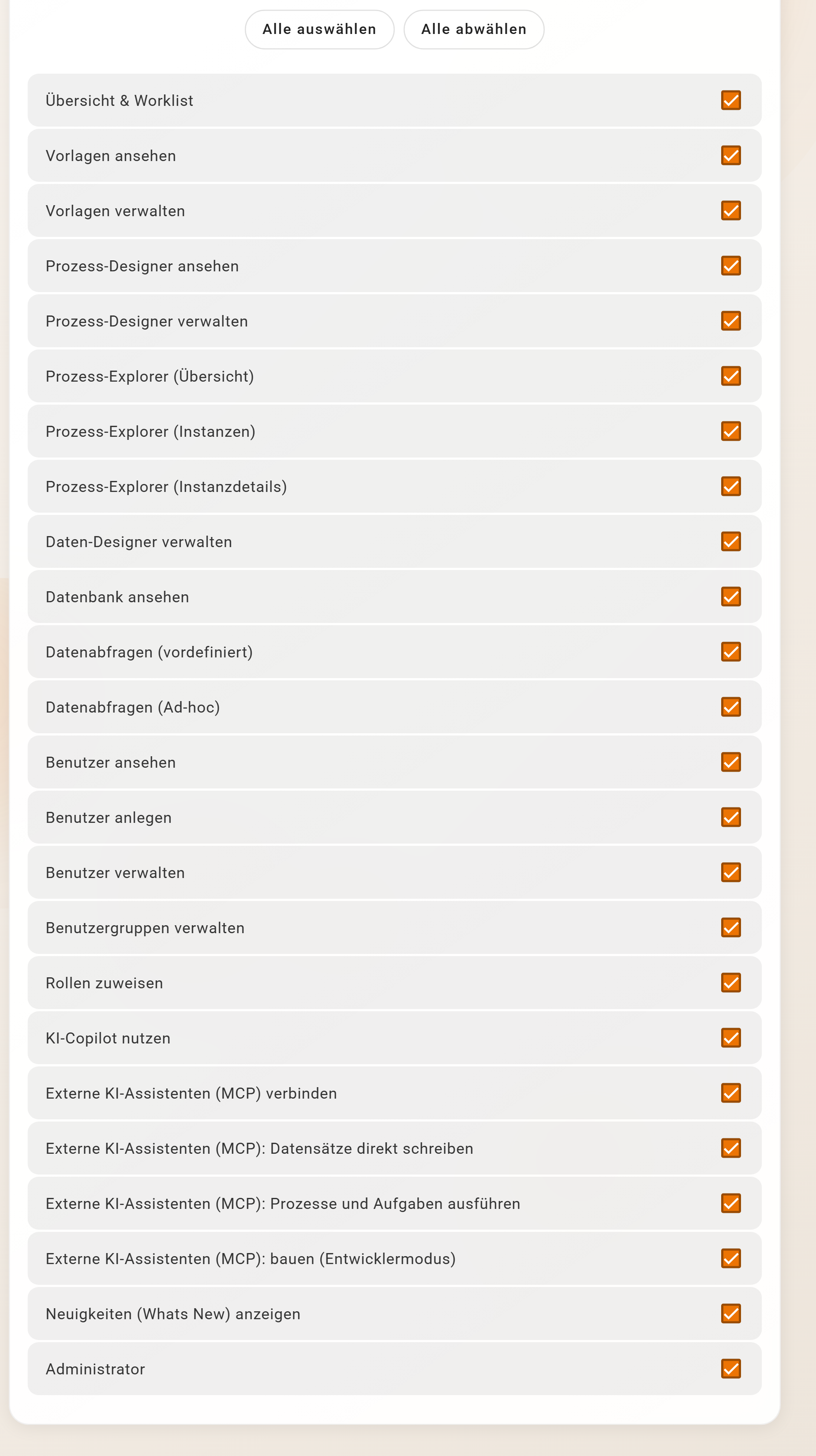
This is where the roles of an account are set. Roles define which areas and actions of the app a person may use; they are independent of groups and of the permissions on the data schema.
Operation
- A click on a row sets or removes the role. Select all and Deselect all act on the whole list; for administrators, Select all includes Administrator.
- Saving happens automatically one second after the last change, confirmed with "Roles assigned successfully." There is no save button.
- A change takes effect with the person's next sign-in, or after about 60 minutes at the latest, when their session is renewed. Until then they see the old menus.
Rules
- Only an administrator can grant or remove Administrator and Assign roles. Whoever only has the role Assign roles does not see these two entries; existing ones are kept when saving. Message on attempt: "Only an administrator can grant or remove “Administrator” or “Assign roles”."
- Only an administrator can change a person's own roles. For others, the tab on their own account shows the hint "Only an administrator can change your own roles." and is locked.
- An administrator cannot remove the Administrator role from themselves: "You cannot remove the role “Administrator” from yourself." A second administrator does that.
- If the server rejects a change, the list jumps back to the saved state.
All roles
Order as in the app. The technical names appear in exports and logs.
| Role | What it allows | Technical name |
|---|---|---|
| Overview & worklist | The Overview with tasks, process starts and assigned dashboards; complete tasks, start processes, read and write records in forms, favorites, files. Base role for everyone. | roleOverviewUser |
| View templates | Open the Applications area and view templates. | roleTemplatesViewer |
| Manage templates | Additionally manage templates, for example install and update them. | roleTemplatesManager |
| View process designer | Process Designer read-only: open processes and scripts, change nothing. | roleProcessDesignerViewer |
| Manage process designer | Create, change, deploy and delete processes, maintain scripts; includes the Dashboard Designer. | roleProcessDesigner |
| Process explorer (overview) | Process Explorer with the overview of all processes. | roleProcessExplorerGeneralViewer |
| Process explorer (instances) | additionally the instances per process. | roleProcessExplorerInstancesViewer |
| Process explorer (instance details) | additionally instance details and interventions such as cancel, continue, restart. | roleProcessExplorerInstanceDetailViewer |
| Manage data designer | Create, change and delete data schemas, forms, permissions and actions, backups. | roleDataDesigner |
| View data lake | The Database area: view records and, despite the name, also create, change and delete them, as far as the permissions on the data schema allow. | roleDataLakeViewer |
| Data analytics (predefined) | Data analytics with saved queries. | roleDataAnalyticsViewerPredefined |
| Data analytics (ad-hoc) | Data analytics with freely written SQL. | roleDataAnalyticsViewerAdhoc |
| View users | User list for form fields of type Person; does not open the Users area. | roleAdminUsersRead |
| Create users | Users area with the page Create user. | roleAdminUsersCreate |
| Manage users | Overview tab: reset password, lock, delete. | roleAdminUsersManage |
| Manage user groups | Create and delete groups, maintain members. | roleAdminGroupsManage |
| Assign roles | Permissions tab; Administrator and Assign roles themselves remain reserved for the administrator. | roleAdminRolesAssign |
| Use AI Copilot | Use the Copilot chat in the app. | roleCopilotUser |
| Connect external AI assistants (MCP) | Card Connect AI assistants in the profile; a connected assistant works with the person's rights, see Setup. | roleMcpUser |
| External AI assistants (MCP): write records directly | The assistant may create and change records; in addition, the switch under Limits & switches must be on. | roleMcpWriter |
| External AI assistants (MCP): start processes and complete tasks | The assistant may start processes and complete tasks; also with a switch. | roleMcpProcessUser |
| External AI assistants (MCP): build (developer mode) | The assistant may build data schemas, processes and dashboards; needs the switch Developer mode active and the matching designer roles. | roleMcpBuilder |
| Show What's New | Dialog What's new? after sign-in when a new version is out, and the tile What's new in Help. | roleWhatsNewViewer |
| Administrator | All rights. Only with this role: Sequences, Work calendar, Email template, the pages under AI assistants, Account (Plan & Usage, Data Export), Maintenance, and system tables in data analytics. | roleAdmin |
Notes:
- Manage process designer includes the Dashboard Designer; there is no separate dashboard role.
- View data lake also allows creating, changing and deleting records. To restrict that, use the permissions on the data schema.
- The three Process explorer roles build on each other; for instance details all three are set.
- The MCP roles only work together with Connect external AI assistants (MCP) and the switches under Limits & switches.
Example
Musterfirma GmbH, an IT service provider in Augsburg, works with three role sets:
Who Roles Employees Overview & worklist, View data lake, Show What's New Process builders additionally Manage process designer, Manage data designer, Process explorer (overview), Process explorer (instances), Process explorer (instance details), Data analytics (ad-hoc) Management Administrator When Anna Funk from accounting is to adapt the invoice processes herself, the management sets the six roles of the process builder on her account. Anna signs in again and sees Process Designer, Data Designer and Process Explorer in the left bar.
Frequently asked questions
A person has a new role but does not see the area.
Roles take effect with the next sign-in or after up to 60 minutes. Signing out and in again helps immediately. Then check whether the area needs a second role, for example all three Process explorer roles for instance details.
A locked user is still working.
The lock prevents new sign-ins; an open session continues for up to 60 minutes. After that no access is possible. Resetting the password in addition prevents a password that has become known from being used further.
An employee leaves the company. Lock or delete?
Lock on the day of departure. Then, without hurry, have open tasks completed or restarted, switch assignments in processes, dashboards and record permissions to groups or successors, and only then Delete user. Records and built processes remain in any case.
The status has been FORCE_CHANGE_PASSWORD for weeks.
The person has never signed in. If the chip reads Link expired, the temporary password is invalid; Reset password sends a new one. With Waiting for password change, a reminder to the person to look for the email is enough.
The Administrator role cannot be removed from my own account.
By design, so that an account never ends up without an administrator. A second administrator can remove the role.
What is View users for if it does not open the area?
For people who fill in a field of type Person in forms, for example the supervisor in a leave request. The role provides the user list for that, nothing more.
Next step
Groups: bundle people to whom tasks, dashboards and permissions are assigned.