Generating process documentation
Whoever has to explain a process without showing the diagram lets Pantarey write the documentation. In the overview of the Process Explorer, every process has the button Docs. It opens the dialog Documentation for … and generates a description in words from the deployed process, within a few seconds.
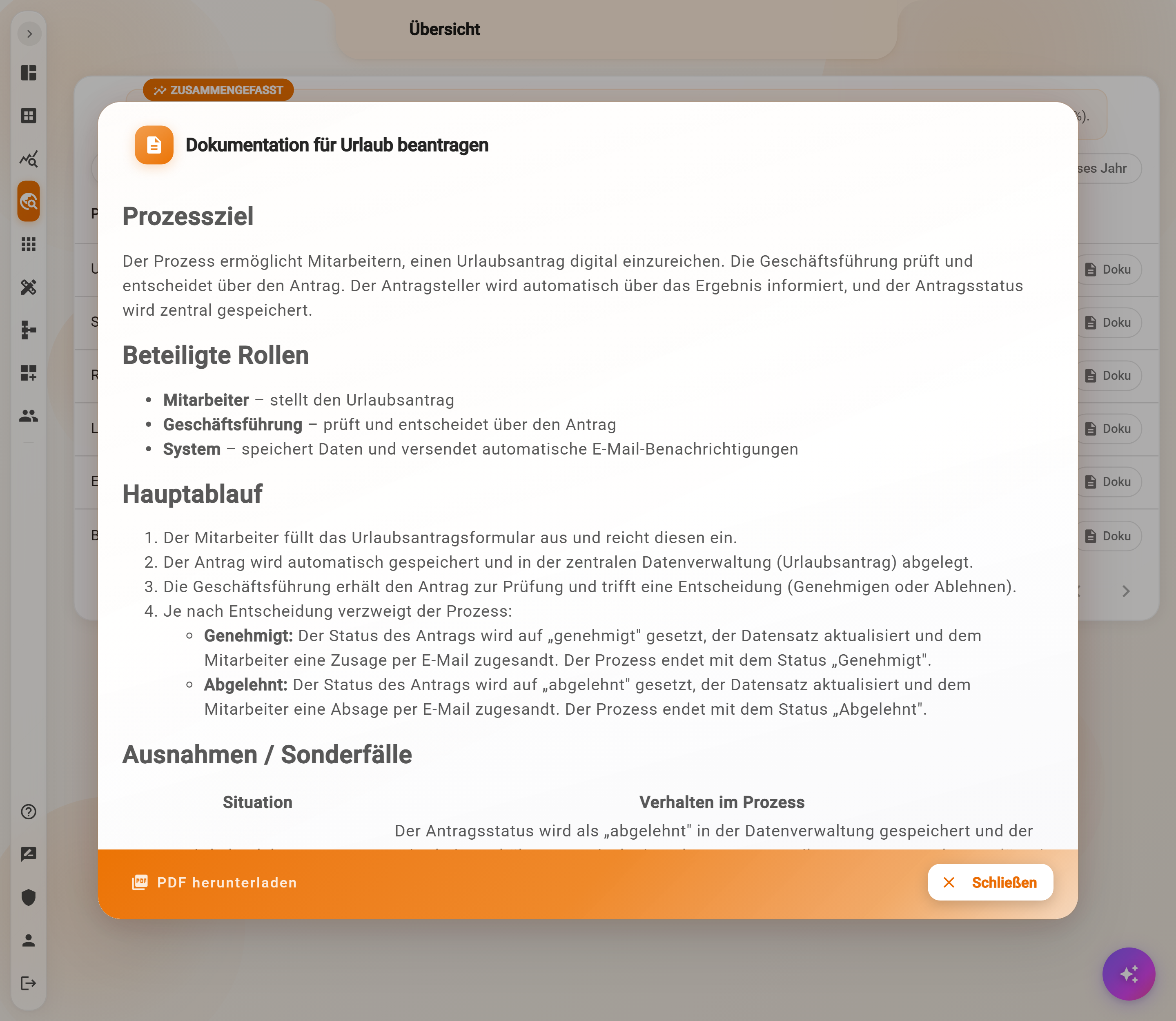
What the documentation contains
- Process goal: what the process is for, in two or three sentences.
- Roles involved: who starts, who decides, what the system does automatically, derived from starts, user tasks and service tasks.
- Main flow: the steps in the order of the diagram, with the branches and their conditions.
- Exceptions / special cases: what happens on rejection, errors or timeouts, as a table “Situation” and “Behavior in the process”.
Download PDF generates the documentation as a file, for example for a quality manual, a training or an alignment with the department. Close discards the display; the next click on Docs generates the documentation anew, then with the current state of the process.
Where the texts come from
The documentation is created with AI from the process itself: from the names of the steps, the description of the process, the conditions at branches, the forms and the settings of the service tasks. The more meaningful the names and the better maintained the description in the Process Designer, the better the documentation reads. A step “Task_1” becomes a weak sentence, “Rechnung freigeben” (approve invoice) a good one.
Frequently asked questions
The documentation describes a step incorrectly.
Then the name or description of the step in the Process Designer is usually unclear. Rename, add to the process description, redeploy and click Docs again.
Does the documentation apply to the working version or the deployed version?
To the deployed version, that is, what is currently running.
Can the text be edited?
Not in the dialog. The PDF can be edited further in another program; more sustainable is improving the names and descriptions in the process.
Next step
Back to the overview or on to Monitor and manage external tasks.