User task
A user task pauses the instance until a person has decided or entered something. It appears for the assignees under Pending tasks, shows a form and action buttons, and its result ends up in the message of the instance. In the designer, it is created from a task via the wrench → User Task.
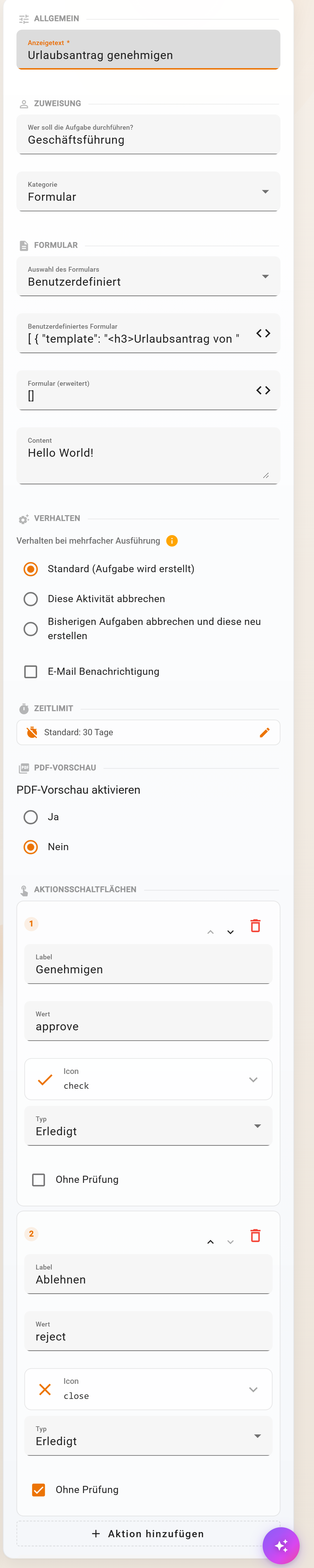
General and assignment
| Field | Meaning |
|---|---|
| Display text | Required. Title of the task in the list and in the email; placeholders $(feld) allowed |
| Who should perform the task? | a group, a person (email) or a placeholder such as $(antrag.vorgesetzte); default is the own email address. With a group, all members see the task, it is completed once |
| Category | Form (entries) or Text only (read and confirm only) |
Form
| Field | Meaning |
|---|---|
| Form selection | the automatic form of a data schema, for example “Urlaubsantrag (auto-generated)”, or Custom |
| Custom form | custom fields as JSON; Open form designer edits them with preview and AI help |
| Form (extended) | additional fields after the selected form, for example “Reason” for the decision |
The entries of the task are placed in the message under the result path; the form is prefilled from the fields of the same name in the message. If something is to go into the database, a Database element follows.
Behaviour
| Setting | Meaning |
|---|---|
| Behaviour on repeated execution | What happens when the same instance reaches the task again, for example in a loop back: Default (task is created), Cancel this activity or Cancel previous tasks and create this one anew. Tasks with the same business label count as the same. |
| Email notification | sends the assignees “New task available: ‹display text› [‹business label›]” with a link, in addition to the task list and the email settings |
Time limit
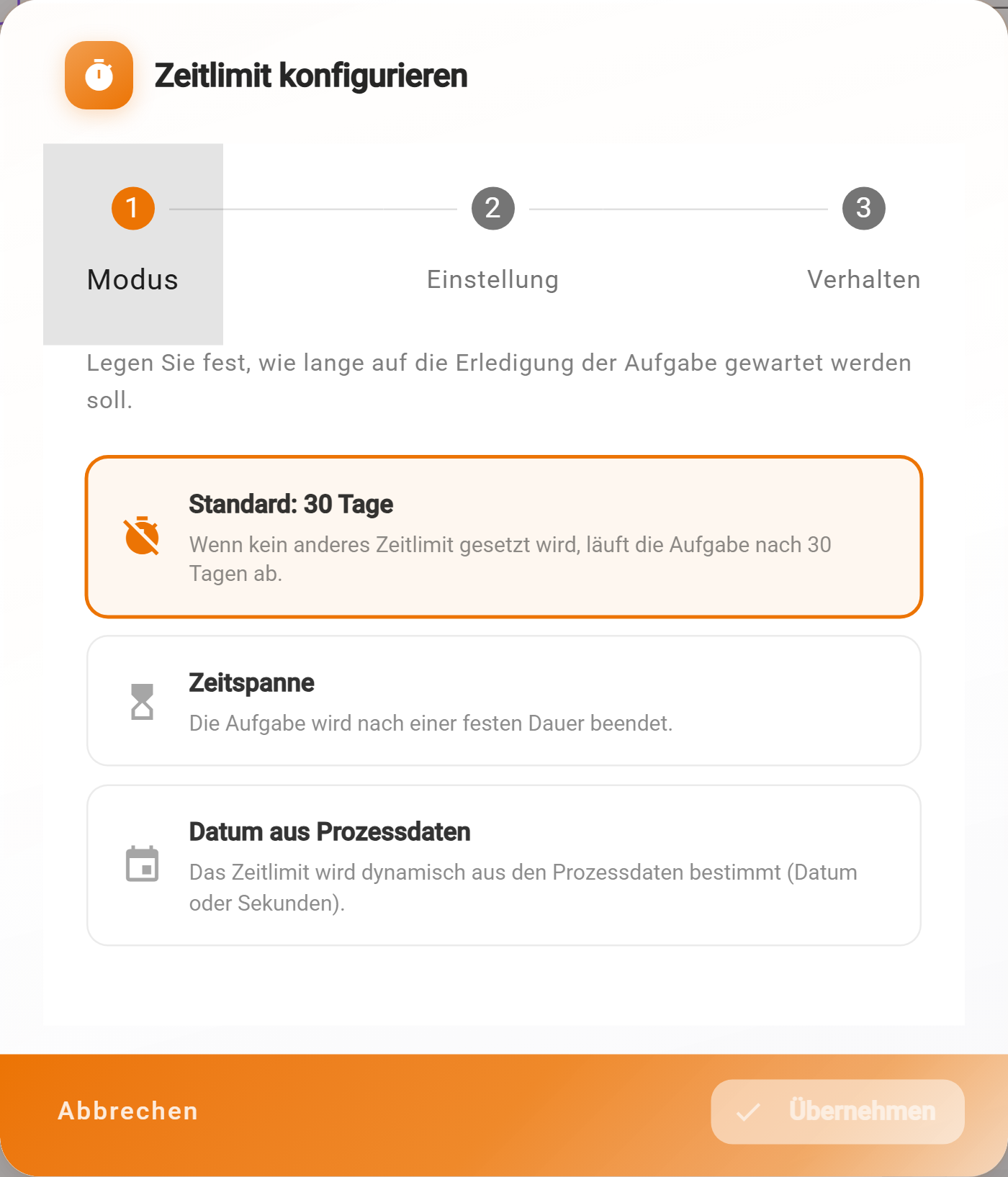
Without a setting, a task waits 30 days. The pencil next to Time limit opens a dialog in three steps: Mode (Default, Time span with value and unit minutes, hours or days, Date from process data with a placeholder such as $(antrag.bis); a pure date applies until 23:59 UTC), Setting and Behaviour on timeout: Cancel (error), which an error boundary event catches, or Continue (proceed automatically), in which case $$context.timedOut is set to true and a gateway can react to it. The person processing the task does not see the deadline; there are no reminders or escalations, for which the “Continue” path with a second task is suitable. No time limit applies in loops.
PDF preview
Enable PDF preview shows the person processing the task a PDF next to the form, for example the invoice to be checked. PDF handler chooses between Generic (template + data), Invoice (with amount calculation) and Complete e-invoice; Edit PDF template opens the PDF designer, Data mapping (JSONata, optional) shapes the data for the template, Template from value uses a central template from the values.
Action buttons
Default are Done and Cancel. Per button:
| Field | Meaning |
|---|---|
| Label, Icon | caption and symbol, for example “Approve” with a check mark |
| Value | what arrives in the message, for example approve; it is placed under $$context.selectedAction and additionally under the mapping path, if one is set, for example entscheidung.status |
| Type | Done completes the task, Done (continue …) completes it and keeps the form open for the next entry, Cancel discards the entries |
| Without validation | the button also works with an incomplete form, useful for Reject |
Add action adds further ones, for example “Query”. A gateway behind it evaluates $(entscheidung.$$context.selectedAction) === 'approve', or with mapping path status also $(entscheidung.status) === 'approve'.
Follow-up actions under Execute after completion define as JSON what the app does after the click: show a Dialog, start a Tour, redirect to a page or Wait until the instance reaches the next step.
What the person processing the task sees
The task appears in Pending tasks, on request by email. The task page shows the display text, business label, the form with the prefilled values, the PDF preview and the action buttons. Required fields of the form apply; entries that have been started are remembered by the browser and offered the next time the task is opened with “Saved entries found”. With a group, everyone sees the task, there is no claiming; whoever completes it first completes it, the others see “already completed”. Afterwards, the Process Explorer shows under In/Out who pressed which button and when.
Example
“Approve leave request” of the Musterfirma: assignment Management, form Custom with the request data as text and the field Reason, action buttons Approve (value
approve) and Reject (valuereject, without validation), result pathentscheidung, time limit Default. The gateway behind it checks$(entscheidung.$$context.selectedAction) === 'approve'.
Frequently asked questions
The task does not appear for anyone.
Check the assignment: group name exactly as in user management, email in lower case, placeholder with a value in the message (Process Explorer → Activities → In/Out).
Two people should decide one after the other.
Two user tasks in a row, each with its own assignment. For “four eyes at the same time”, a loop over a list of people and then a gateway that evaluates the results.
Can the person pass the task on?
Not in the task itself. Whoever has the role for the Process Explorer moves the instance on with Continue with next activity; otherwise, model a button “Pass on” with a follow-up task.
Next step
External user task: the same idea for customers and partners without an account.