Building with the assistant
In developer mode, a connected AI assistant does not only work with data, it also builds the application itself: data schemas with their fields, rules and permissions, processes and the settings of dashboards. A description in the chat becomes a data schema or a process within minutes, exactly as it would have been created in the Data Designer or the Process Designer, and both can be developed further in the conversation.
To make sure nothing happens unnoticed, there are two safeguards, depending on what is built:
- Data schemas, fields, rules, permissions: Pantarey checks the draft, and the user approves the action in an AI approval in their own task list. Only then is it run, exactly once.
- Processes and dashboards: The assistant works on an AI copy. In the designer, the changes can be watched live; the own draft and the deployed version stay unchanged until the user takes the copy over in AI mode. Deployment happens in the designer as usual.
The Quick start shows what this looks like on a small scale, with the Urlaubsantrag (leave request).
Requirements
An assistant may build when all four conditions are met:
- AI assistants allowed is switched on (Users → AI assistants → Limits & switches).
- Developer mode active is switched on (same page). The switch is off by default.
- The user has the role External AI assistants (MCP): build (developer mode) (Users → Manage users). It only works together with the role "connect" and is not granted to administrators automatically.
- The user may do what is built in the app as well; for data schemas, this means creating data schemas in the Data Designer.
If one condition is missing, the assistant does not see the build tool or receives a refusal with the reason. When developer mode is switched off, Pantarey refuses every build call immediately, including for assistants that are already connected. Roles and settings are kept.
Creating data schemas with the assistant
In the chat, the data to be stored is described, for example: "Create a data schema Invoices with invoice number, invoice date, status, customer and line items with description, quantity and tax rate." The assistant turns this into fields and has Pantarey check them. The result is the same as in the Data Designer, see Create a new data schema and Define attributes.
Sequence
- Check (dry run): The assistant has the draft checked without creating anything. Pantarey reports all problems at once, each with a suggestion, for example an invalid field name or a reference to a data schema that does not exist. The assistant corrects them and checks again. A dry run needs no approval and does not count against the limits.
- Summarize: Once the draft is fine, the assistant shows the name and fields exactly as they will be created and asks for confirmation.
- Request approval: After confirmation in the chat, Pantarey puts an AI approval into the user's task list. The assistant provides the link. Nothing has been created yet.
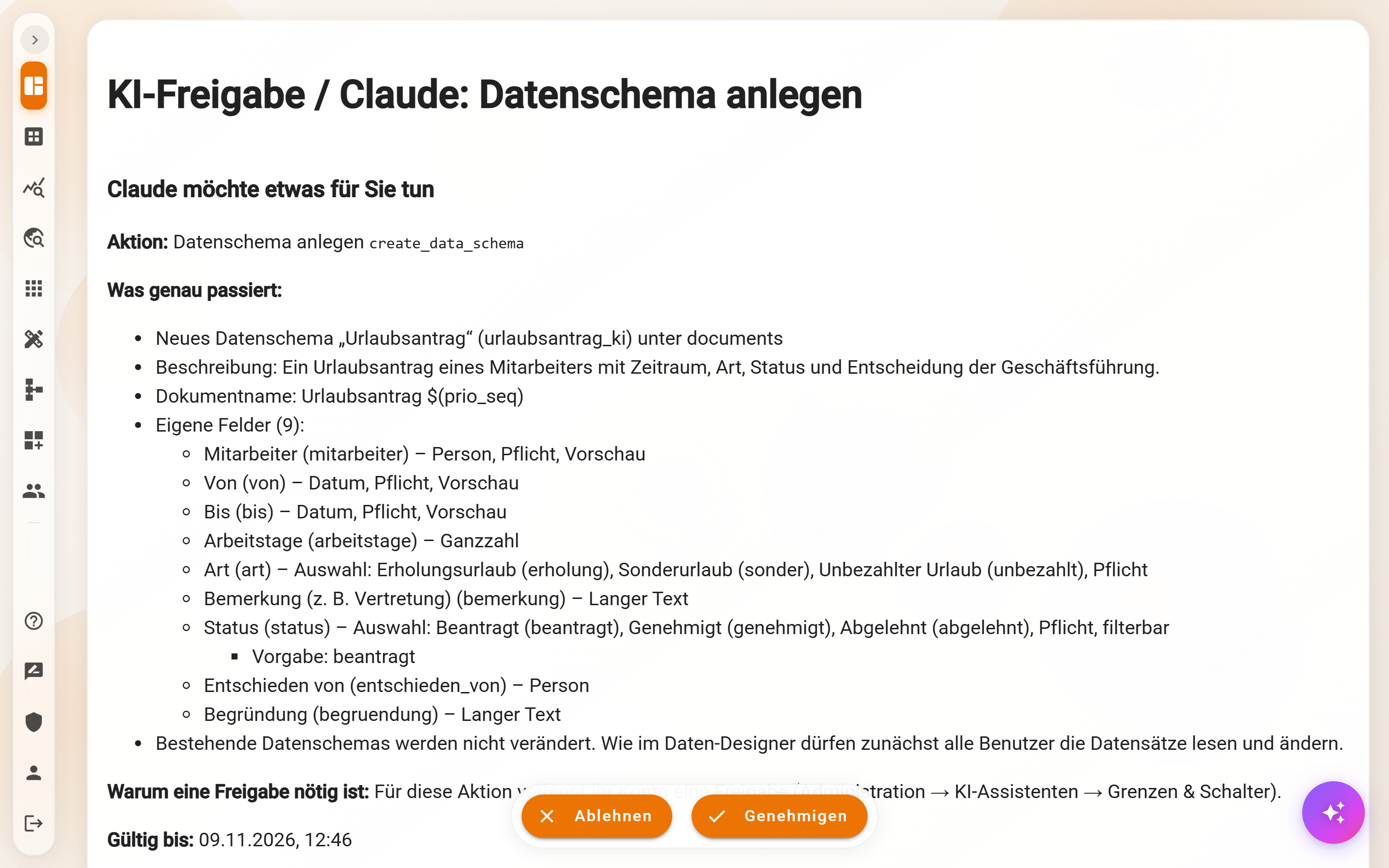
- Approve: Under "What exactly happens", the approval shows the new data schema with its description, document name and every field with its type, required flag and sub-fields. After "Approve", the assistant is told and runs the action, exactly once.
- Continue: The assistant reports the new data schema with a link to the Data Designer, where it can be edited like any other.
What the assistant can create
The field types are the same as in the Data Designer:
| Field type in the Data Designer | Note |
|---|---|
| Text, Long text | Text also in e-mail format |
| Integer, Decimal | |
| Yes / No | |
| Date, Timestamp | |
| Person, Group | Selection of users or user groups |
| Reference | to an existing data schema |
| Value list | for text, integer or decimal, with display names; optionally indexed (for filters and Kanban), top level only |
| Object | with its own fields, up to three levels deep |
| Multiple (list) | of all types above, e.g. line items as a list of objects |
| Image, PDF, CSV file, File | fields for files, created exactly as in the Data Designer; the files themselves are uploaded in the app or by a process |
For each field, Required, Preview and a description can be set as well, plus everything else from the Data Designer's dialog: default values, computed fields, visibility rules in the form, Unique, an example value, Newest first for lists, the order of the search results for references and the format Duration for numbers.
Unique works as in the Data Designer: all unique fields of a data schema form one key together. Pantarey refuses a record only when it equals another one in all of these fields; empty values do not count. It is checked when a record is saved, so existing records only when they are saved again. When a field becomes unique, the dry run looks for values that already appear more than once, and the approval names them. Unique is only possible for fields on the top level, not in lists or objects.
Still added in the Data Designer: counters and functions in the document name.
Rules Pantarey enforces
- Creating never overwrites. If a technical name is already taken, creation is refused. The assistant changes existing data schemas only through the field tools, each change with its own approval.
- Technical names of data schemas and fields consist only of lowercase letters a–z and underscores, without digits, umlauts or spaces, for example
invoice_numberoritem_two. They are used as table and column names in Data analytics and cannot be changed later. Pantarey never renames on its own; it refuses and suggests a valid name. - Reserved names: Names starting with
prio_orapp_belong to Pantarey and its templates. SQL keywords such asselectcannot be used as the name of a data schema either. - Location: New data schemas are created below "Document" or below an existing own data schema. They inherit its fields; a field with the same name as an inherited field is refused.
- Document name: Without a template, records are named "display name + ID", as in the Data Designer. Instead, the assistant can suggest a template built from fields, such as "Invoice $(invoice_number)". Because document names must be unique within a data schema, Pantarey points out when the template might not be unique or contains empty fields. More under Document name.
- Permissions: As with every new data schema in the Data Designer, all users may read and edit the records at first, until the permissions are adjusted. The assistant mentions this and can set up the permissions itself.
Adding, changing and deleting fields
Existing data schemas can be developed further in the chat as well, for example: "Add a required field due date to the invoice, after the invoice date" or "Hide the fax field of organizations". The sequence is the same as for creating: dry run, summary in the chat, AI approval, execution. The change is saved exactly as the Data Designer saves it; data schemas below, forms and the tables of Data analytics follow automatically.
Adding fields
- New fields have the same field types and settings as when creating a schema.
- They go to the top level, into an object or into a list of objects, for example as a new field of the line items, and, if wanted, right after a certain field; otherwise at the end.
- Data schemas below receive the new fields as well. If one of them already has its own field with that name, the request is refused.
- New required field with existing records: This is possible, but the dry run and the approval point out clearly how many records have already been created. These records have no value in the new field and can only be saved again once it is filled.
Changing a field
Title, description, required, preview, hidden, the value list and the further settings such as default value, computation, visibility rules, Unique, example value, newest first, order of the search results and duration can be changed. The type can only be switched between text and long text.
- Hidden: A hidden field no longer appears in forms; its values are kept. This retires a field without losing data, and it can be shown again at any time.
- Value list: Values can be added, their display names changed and values hidden. Values are not removed, because existing records may still contain them; a value is hidden instead.
- Not through the assistant: changing the technical name (it is the column name in Data analytics), switching to another type (create a new field instead) and switching "Index enum values". This is done in the Data Designer.
The approval shows each change as before → after.
Deleting a field
Deleting is permanent, like "Delete attribute" in the Data Designer: the field's values can no longer be queried in Data analytics, including in the data schemas below, and a field with the same name added later does not bring them back.
That is why the approval starts with ⚠ DELETE PERMANENTLY and lists:
- all affected data schemas with the number of records created so far,
- permissions whose condition reads the field; they then block their users until the condition is adjusted in the "Permissions" tab,
- places that may still use the field: document name, computed fields, rules and visibility rules,
- the note that processes, forms and analyses are not checked.
The last field of an object cannot be deleted on its own; the whole object is deleted instead.
Order of the fields
The assistant can change the order of the fields, like drag and drop in the Data Designer; forms then show the fields in this order. This works on the top level and inside objects and lists. Inherited and system fields keep their places, data schemas below keep their own order.
What applies to all field changes
- Own fields only: Only fields the data schema defines itself are changed. Inherited fields are changed in the parent data schema, system fields not at all. Fields from templates (technical name starting with
app_) stay unchanged as well, because a template update would overwrite them; own fields in a template data schema are possible. - Exactly the state that was read: If the data schema was changed after the assistant read it, for example in the Data Designer, nothing is changed. The assistant reads it again and asks again. An approval applies only to exactly the state it describes.
- Not on the document schema: The top data schema "Document" and Pantarey system schemas are not changed by the assistant.
Renaming a data schema
The display name and the description of a data schema can be changed, for example "Invoice" to "Outgoing invoice". The technical name stays, because it is part of the identifier and the table name in Data analytics. The approval shows the old and the new name.
Rules (validation)
Rules check the whole record when it is saved, for example "The end is not before the start" or "With status Sent, an invoice date is required". In the Data Designer they are found under Validation (see Validation rules). With the assistant, it is enough to describe the rule in plain words; it writes the JSONata expression, an error message that tells the user what to fix, and a short description of what the rule ensures.
Because a faulty rule can prevent every save, Pantarey tries every new or changed rule first:
- The assistant provides examples, preferably real records plus a deliberately wrong one. The rule must accept at least one example and reject at least one.
- If a rule cannot be evaluated, for example because a field is missing and the expression then gives no result, it is refused.
- If an example does not come out as expected, the change is refused as well.
The approval names each rule by its description, with the error message below it and the expression last. It also shows the result of each example (valid, or rejected with the message). Rules can also be switched off, have their message changed, or be removed.
Rules apply to the records of this data schema, not to the data schemas below. Existing records that break a new rule can only be saved again once corrected. The approval points this out when a rule is added, gets a new expression or is switched on again. Rules in JavaScript are still edited in the Data Designer.
Permissions
The permissions of a data schema can be set up in the chat as well, for example: "Sales should only see customers of their region, the office everything" or "Only accounting may still change approved invoices". The assistant first reads the existing permissions, asks what exactly should apply and describes the planned entries in words. It can add, change and delete permissions with everything the Permissions tab in the Data Designer offers: allow and deny, conditions, exceptions, separate rights for AI assistants and a description. See also Set up with an AI assistant.
Because a wrong permission shows records to the wrong people or hides them from the right ones, the dry run and the approval show exactly what changes:
- For every user: which actions change, for example "anna@company.com: list, read: all → none". If the change affects the user themselves, "(you)" is added. If nothing changes in the actions, this is stated explicitly, for example when a restricted permission sits next to "All users" with full access. Permissions add up.
- For changes: before and after, for example "Actions: list, read, create → create".
- Notes: when nobody sees any records afterwards, when a deny without condition applies to all users, when the data schemas below keep their own permissions, or when the index for conditions has to be updated. The assistant does not start that action itself; it sends the link to the Data Designer.
The following applies:
- A description is required: every new permission gets a description of why it exists.
- Exactly the state that was read: if a permission was changed after the assistant read it, for example in the Data Designer, nothing is changed.
- As in the Data Designer: conditions are checked and saved the same way. In addition, the user needs the right to edit permissions.
- Approval: by default every change needs an AI approval. This can be switched off per tool under Which actions need an approval.
Building processes with the assistant
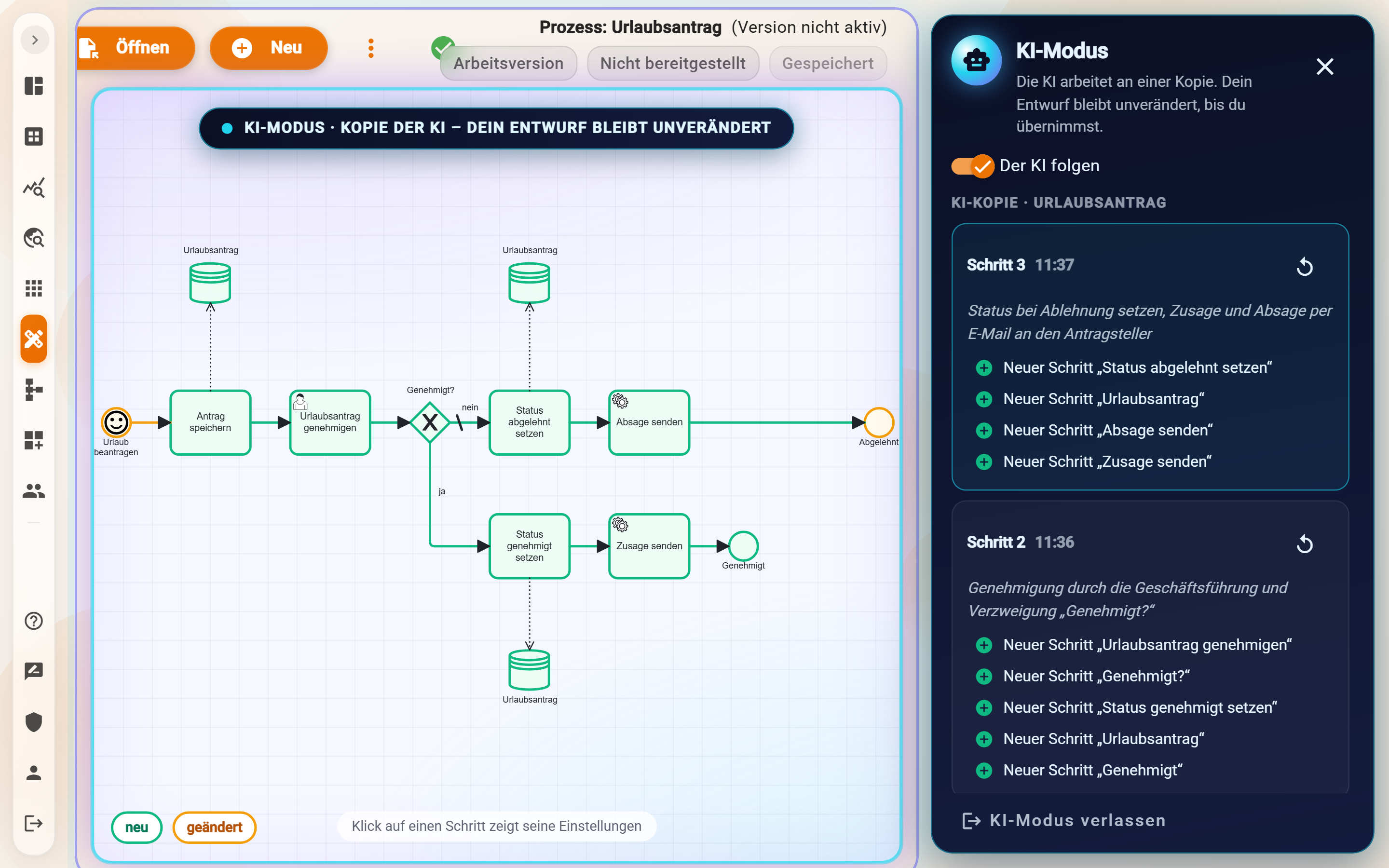
The assistant reads processes, creates new ones and builds on them as in the Process Designer: steps, gateways, forms, databases and starts. It works on an AI copy of the process. The own draft and the deployed process stay unchanged until the copy is taken over. In the Process Designer, the changes can be watched live as they are made.
Sequence
- Describe in the chat what the process should do, for example "After the leave request is saved, the team lead approves it; if rejected, the requester gets an e-mail." For a completely new process the assistant first creates an empty one (start and end), just like New in the Process Designer.
- The assistant reads the process, checks every change in a dry run and then makes it in the AI copy. Several changes in one call are one step.
- The chat contains a link to the Process Designer. Alternatively, the AI mode button next to Deploy switches the mode on. The top then shows "AI mode · The AI has the controls", and the designer replays every step: it jumps to the changed element, new elements appear green, changed ones yellow, and a card next to it shows the new values. Skip ends the replay.
- On the right is the AI panel with AI copy · name of the process and the Steps of the AI; a click on a step replays it. A click on an element in the diagram shows its settings under Properties (view only). Editing is possible only after Leave AI mode. With Follow the AI, Pantarey itself opens the process the assistant is currently working on.
- Decide in the AI panel: Take over and deploy takes the copy over and opens the deploy dialog right away. The description there is already filled in with a summary of what the assistant changed, and can still be edited. AI mode stays open. Take over only makes the copy the own draft, Undo last step undoes the most recent step, Discard closes the copy and the draft stays as it was.
- Without "Take over and deploy", deployment happens as usual with Deploy. If there is still an AI copy with steps not taken over, the designer points this out (AI copy not taken over yet): only the own draft is deployed.
What the assistant can build
- Insert steps: user tasks, service tasks (for example creating a PDF or sending an e-mail) and empty tasks, each after an existing element. What follows moves to the right; a diagram laid out by hand is not rearranged.
- Gateways: insert a gateway, new ways with a condition, set the default way, join ways and end a way with an end event.
- Settings: name, input, output, result path, ignore result and business label. For user tasks also who performs them, the form (the form of a data schema, an own form or additional fields), the category and the buttons. For service tasks the service and its settings, including e-mail and PDF templates: whole, only a part of them or copied from another step.
- Databases: attach one to a step that afterwards creates or changes a record, or reads records before it, also by SQL. An SQL query runs once in the dry run with the user's own rights.
- Starts: start button, icon, who may start and the start form. Turn a start into a timer start (the process starts at set times) or a message start (webhook or app). Add a further start next to the existing ones, for example a timer start "every year on 1 April" next to the start button.
- "Throw signal": an intermediate event that tells open dashboards that something has been saved. A planning board then reloads at once when its button names the same signal under Signal for reloading.
- Remove: steps (the ways before and after are joined), sub-processes, end events, ways and databases.
- Not through the assistant: parallel gateways (Pantarey has none), script tasks, calls of other processes, further events such as waiting or messages, a further start with a button and form, databases that delete, and deploying. These stay in the Process Designer.
Rules Pantarey enforces
- Check first, then change: forms (field types, keys, required details), JSONata, SQL (exactly one read-only query), schedules and whether the named data schemas and processes exist. Every gateway must be complete afterwards: each way except the default way has a condition. If there is an error, nothing is changed.
- Notes instead of errors: if an element is left without a way in, or the business label is the same for every case, the assistant gets a note and says so in the chat.
- Secrets stay in Pantarey: the address of a webhook start contains a secret key. It is shown only in the Process Designer at the start, never in the chat.
- One copy per process: if the assistant of another user is already working on a copy, "This copy belongs to the assistant of …" appears. It must be taken over or discarded first.
- Draft changed in the meantime: if the draft was changed in the Process Designer since the AI started, Take over asks first (Take over anyway). The previous draft is kept as a backup.
- No AI approval in the task list: the decision is Take over in the AI panel; a new, empty process needs no approval either, as it does not run yet. Those who still want an approval per change set this under Which actions need an approval for the tool
change_process. - Requirements: as above, plus the right to edit processes in the Process Designer. AI mode is available only for a process the user may currently edit themselves.
- Limits: every change counts against the limit Create and change records, building; dry runs do not count.
Example
HR wants expired remaining leave to be calculated once a year, in addition to the button "Verfall berechnen" (calculate expiry). The chat says: "Add a second start to the process that starts every year on 1 April at 6:00." The assistant checks this in a dry run and adds the timer start to the AI copy. In the Process Designer, the new start appears in green below the existing one; the card next to it shows the schedule and the time zone (Europe/Berlin). After Take over and Deploy, the process starts by itself on 1 April, and the button keeps working as before.
Changing dashboards with the assistant
The assistant reads dashboards and changes the settings of their widgets, for example the SQL query of a table, the unit of a KPI, or the buttons, colors and rules of a planning board. It works on an AI copy of the dashboard. The own draft and the deployed dashboard stay unchanged until the copy is taken over.
Sequence
- Say in the chat what should change, for example "Add a 'Report sick' button to the toolbar of the planning board" or "Also show full-time equivalents in the totals row".
- The assistant reads the dashboard, checks the change in a dry run and then makes it in the AI copy. Changed SQL queries run once in the dry run with the user's own rights, so errors show up beforehand.
- The chat contains a link to the Dashboard Designer. There, a note at the top says that the AI's copy is shown. A click on a widget shows under Changes by the AI what changed in it, before and after.
- In AI mode (button AI mode in the Dashboard Designer), the AI panel on the right shows AI copy · name of the dashboard and the Steps of the AI. With Follow the AI, Pantarey switches by itself to the dashboard the assistant is currently working on.
- Decide in the AI panel: Take over and deploy takes the copy over and opens the deploy dialog right away. The description there is already filled in with a summary of what the assistant changed, and can still be edited. AI mode stays open. Take over only makes the copy the own draft, Undo last step undoes the most recent step, Discard closes the copy and the draft stays as it was.
- Without "Take over and deploy", deployment happens in the Dashboard Designer as usual.
What the assistant can change
- Settings of existing widgets: single values, a part of a long SQL query, whole lists, and adding or removing single list items, such as a button in the toolbar of the planning board, a color for a category or a result column.
- The title of a widget.
- Not through the assistant: adding, removing or moving widgets, setting who sees the dashboard, and deploying it. That stays in the Dashboard Designer.
Rules Pantarey enforces
- Every changed setting is checked, also inside a new list item: whether the setting exists, whether the value fits (for example only allowed choices), whether data schema and process exist, whether an SQL query is exactly one reading query, and whether an id appears twice in a list (the widget then shows nothing). If anything is wrong, nothing is changed.
- Unknown settings are saved, but the assistant gets a note and says so in the chat.
- Everything readable: the assistant can read a widget in full at any time, or just single settings. After a change it only sees what really changed.
- One copy per dashboard: if another user's assistant is already working on a copy, "This copy belongs to the assistant of …" appears. It must be taken over or discarded first.
- Draft changed in the meantime: if the draft was changed in the Dashboard Designer since the AI started, Take over asks first (Take over anyway). The previous state is kept as a backup.
- No AI approval in the task list: the decision is Take over in the AI panel. Those who still want an approval per change set this under Which actions need an approval for the tool
change_dashboard. - Requirements: as above, plus the right to edit dashboards in the Dashboard Designer. With that right the assistant can also read dashboards without developer mode.
- Limits: every change counts against the limit Create and change records, building; dry runs do not count.
Example
HR wants a leave request to show up on the planning board at once. The chat says: "Switch on the signal 'gespeichert' and the provisional bar on all buttons of the board." The assistant sets "Signal for reloading" and "Show provisional bar" on each button, checks this in a dry run and changes the AI copy. In the Dashboard Designer, a click on the board shows the changes on all buttons. After Take over and deploying, the new setting applies to everyone.
Trying out and checking
Two tools help while building without changing anything. They need no approval and do not count against the limits; they are available with the role "build (developer mode)".
- Try a JSONata expression: The assistant evaluates a JSONata expression on example data, exactly as Pantarey does in processes, computed fields and rules, with Pantarey's functions such as
$fn(…). Counters are only read, so no number is used up. If an expression gives no result for the data, the tool says so, because in a process step that would stop the step. - Check a record (without saving): The assistant checks whether a record would be accepted when saved: defaults and computed fields are filled in, then required fields, types, allowed values and rules are checked. Nothing is saved. This helps after adding fields or rules and when the question is why a record is refused. Not checked: unique fields, duplicate names and whether linked records exist.
AI approvals
An AI approval is a task in the normal task list, grouped under AI approval, for example "Claude: Create data schema". The assistant provides the link in the chat.
What the approval shows
- Action: which tool the assistant wants to run.
- What exactly happens: a readable summary, for a data schema with all fields.
- Why an approval is needed and Valid until.
- Input: the complete input of the call.
The decision is made with Approve or Reject. Approving does not run the action yet. That happens when the assistant repeats the call with this approval; a short note in the chat such as "approved" is enough.
Rules
- Only the user decides. An approval appears only in the task list of the user the assistant works for. Other users who open it only see "Another user's AI approval", without any content.
- The assistant never decides. Approvals do not appear among its tasks, and it can neither read nor complete them.
- Exactly this action: The approval applies only to the call with exactly this input. If anything changes, a new approval is needed.
- Once: A used approval is consumed. A second call with it is refused.
- With a deadline: After the set validity has run out, the approval can no longer be used. Expired approvals disappear from the task list; the assistant requests a new one if needed.
- Check first, then ask: If a build call contains errors, they go back to the assistant and no approval is created. This way, nothing is approved that would then fail.
- Several at once: Like other tasks, several approvals can be decided one after another on a single page via "Process all", each with its summary.
Which actions need an approval
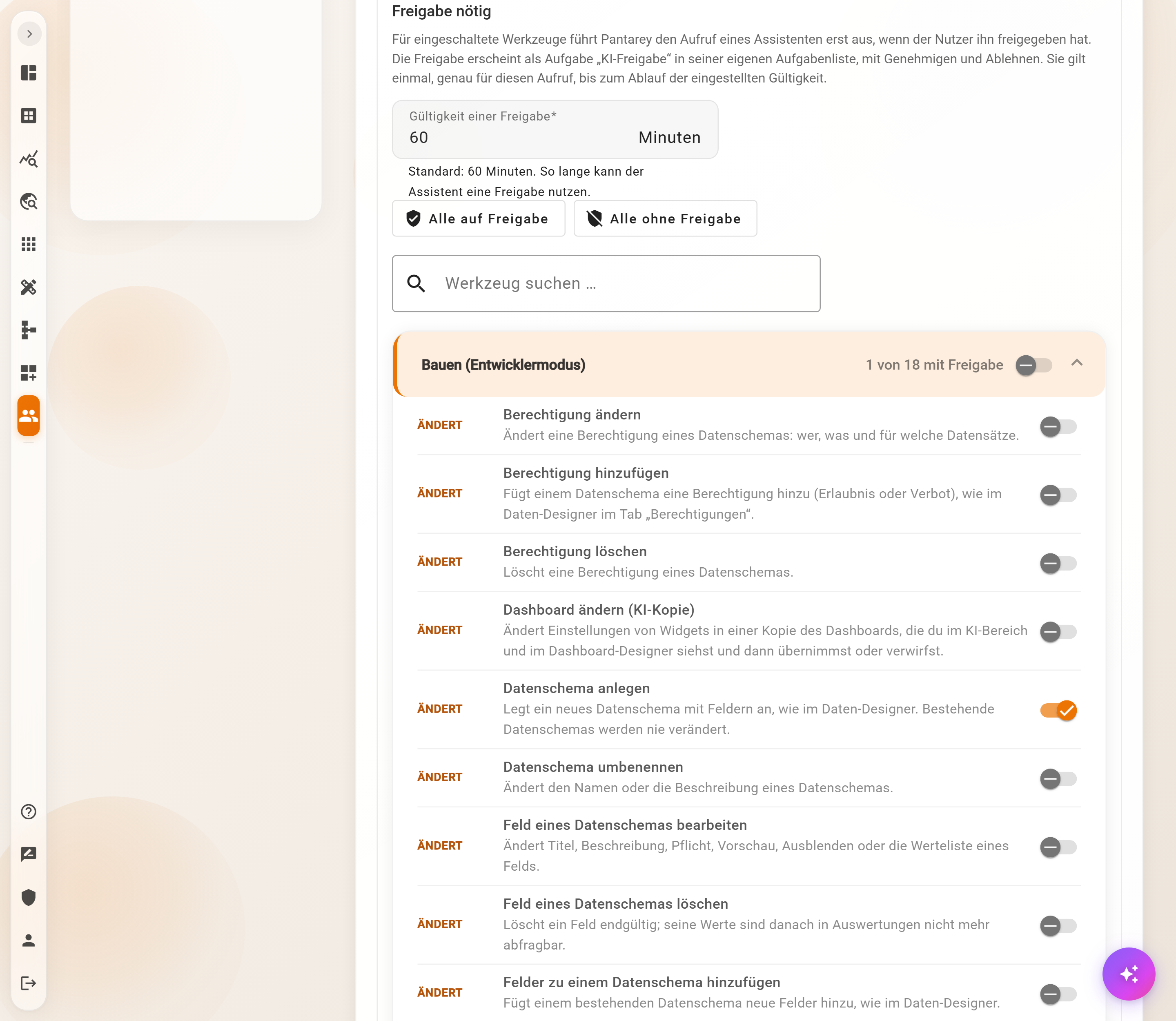
Under Users → AI assistants → Limits & switches → Approval required, each tool can be set to require an approval:
- The tools are grouped by area, such as Building (developer mode), Data, or Processes and tasks. Each shows a short description and whether it changes something or only reads.
- All with approval, All without approval and Whole group needs approval switch several tools at once; the search finds individual tools.
- Default: build tools need an approval, all others do not. Creating records or starting processes can be set to require an approval as well.
- Validity of an approval: 5 to 1440 minutes, default 60.
The settings apply immediately to the whole account.
Limits and log
- Limits: Every created data schema and every field change counts against the limit Create and change records, building per user and hour. Dry runs do not count.
- Log: Every call is recorded in the table
prio_mcp_usage_statisticsin Data analytics; only administrators can query it. The columnapproval_idnames the related approval;produced_idnames the created data schema.guardshows what stopped a call:switches(a switch, e.g. developer mode off),approval(approval missing, used or expired),precheck(check before the approval) orbudget(limit reached).
Example query for all build actions:
SELECT execution_timestamp, user_email, tool, result, decision, guard, produced_id, approval_id
FROM prio_mcp_usage_statistics
WHERE tool LIKE '%data_schema%' AND tool <> 'get_data_schema'
ORDER BY execution_timestamp DESC
LIMIT 50
Example
A project lead describes a data schema for credit notes in the chat, with credit note number, date and amount, named after the credit note number. The assistant checks the draft, shows the fields and the document name "Credit note $(credit_note_number)" and, after confirmation, requests an approval. "Claude: Create data schema" appears in the task list. After approval, the assistant creates the data schema; a first record is then named "Credit note CN-2026-001".
Frequently asked questions
Which names make good technical names?
Business terms, for example invoice_number instead of field1. They are immediately understandable in analyses later and cannot be changed any more.
Have everything built at once or start small?
Start small: a data schema with the most important fields, then add files, computed fields or permissions in the conversation or in the Data Designer. Every addition is a separate, manageable approval.
Why does the assistant read descriptions?
It uses the descriptions of data schemas, fields and rules to understand what a field is for. Good descriptions make its suggestions better. It knows that descriptions can be outdated and relies on the fields themselves when in doubt.
Delete or hide a field?
Hide, if the values might still be needed. A deleted field is gone for good together with its values, including in the data schemas below.
Does developer mode have to stay on permanently?
No. The switch can be turned on for the duration of a project and off again afterwards. Roles and settings are kept.
What to do if the approval is not right?
Choose Reject and say in the chat what should change. The assistant corrects the draft and requests a new approval. An approval always applies only to exactly the draft it describes.
Next step
Roles, limits and security: who may build, what needs an approval and what the log contains. The reference of the build tools is under Tools, the templates for document names under Document name.