Instance details
The detail view shows a single instance completely: the diagram of the process with the status of each step, the key data, the list of all activities with their data and, if someone intervened, what was changed when. This is where it becomes clear why an instance is stuck or has failed, and from here it is resumed or restarted.
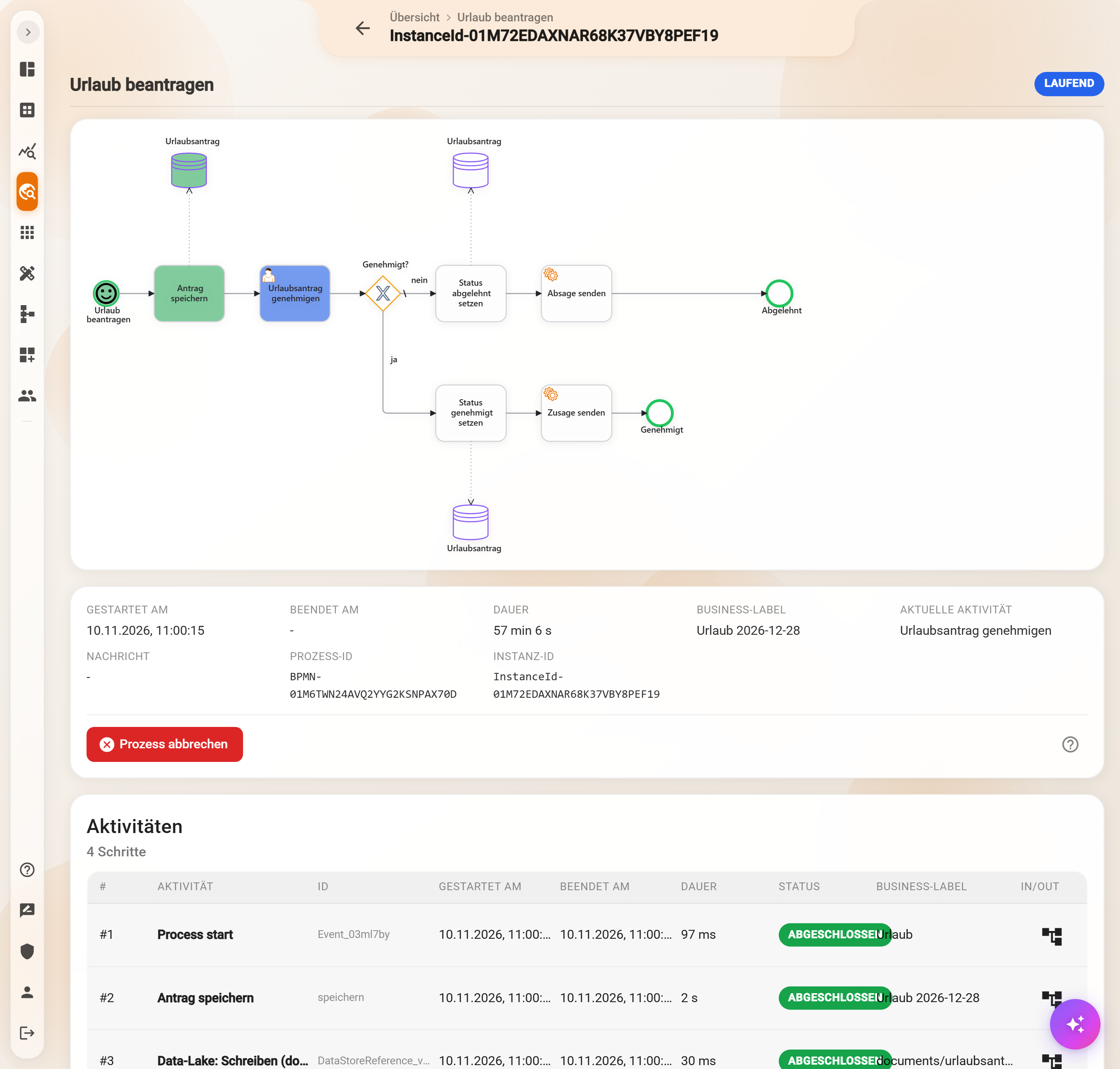
Diagram
At the top is the diagram of the process as drawn in the Process Designer, colored according to the run of this instance: completed steps green, the current step blue, a failed one red. The icon for status-based highlighting switches the coloring off and on. This shows at a glance which path the instance took at a branch and where it stands.
Key data
Started at, Ended at, Duration, the Business label, the Current activity, for errors the Message with the error text, plus Process ID and Instance ID. The instance ID identifies the instance uniquely, for example for a query to support. If the instance was restarted, Restarted as and Restarted from point to the respective other instance.
Below are the buttons for intervening: for running instances Cancel process, for failed or cancelled ones Resume from last activity, Continue with next activity and Restart entire process, each with the original or an adjusted message. Which action is the right one when is described under Actions in the Process Explorer.
Activities
The list shows every step the instance has passed through so far, with number, name and technical ID, Started at, Ended at, Duration, Status and the business label at that point in time. Database steps also appear as their own row (“Data-Lake: Schreiben”, data lake: write). Special markers:
- Skipped with Skipped by: someone left out the step via “Continue with next activity”.
- Caught error: the process handled the error itself and carried on.
- asynchronous: the process did not wait for the reply after sending a notification.
- Subprocesses: if a step started other processes, the row expands and shows them; To parent process leads back out of a subprocess.
In/Out: the data of a step
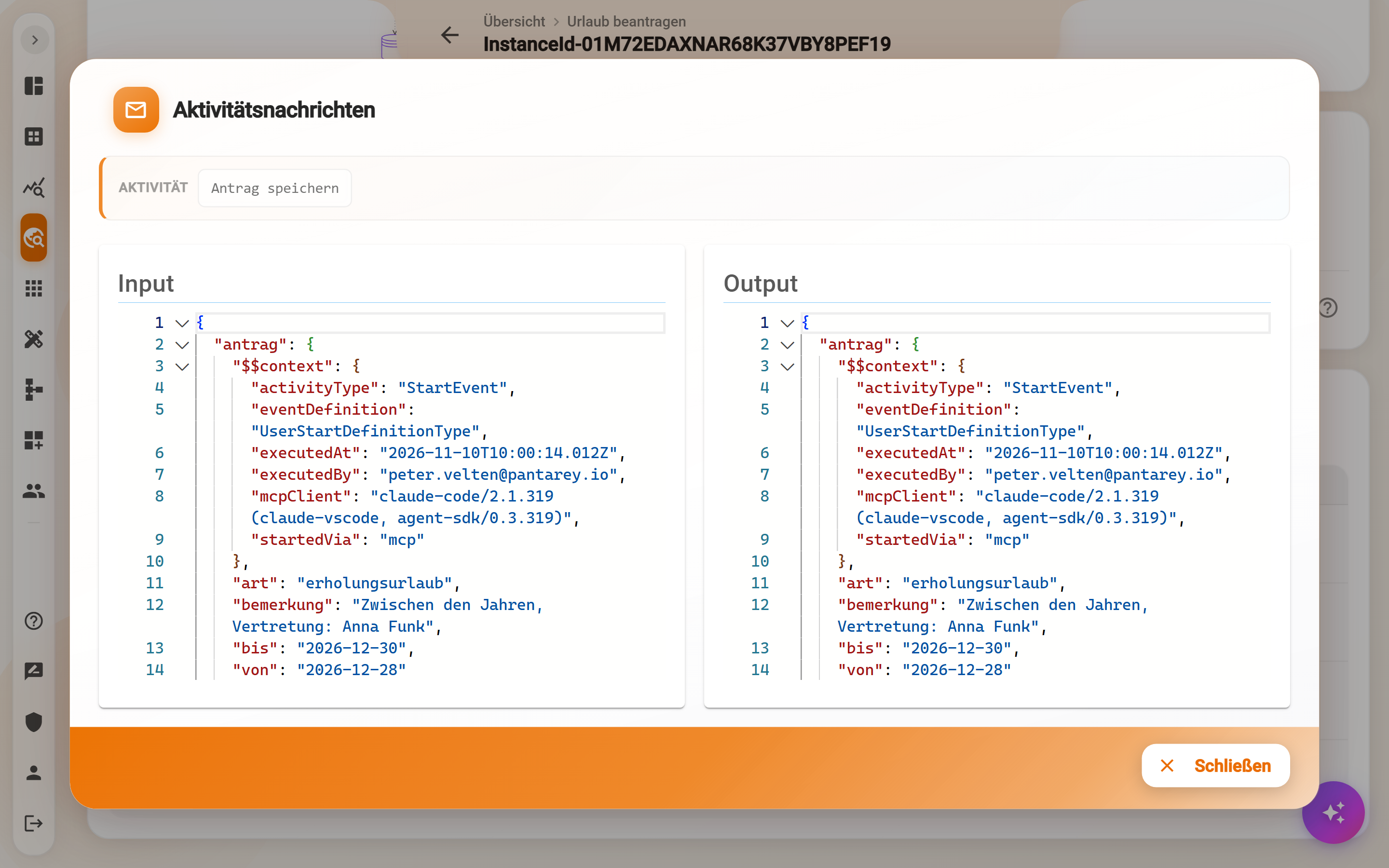
The icon in the column In/Out opens the dialog Activity messages with the Input the step received and the Output it delivered, as a readable data structure. This is the most important tool when troubleshooting: if a field the step needs is missing from the input, or the output looks different than expected, the cause is found.
Interventions
If the instance was resumed, a step was skipped or the instance was continued with an adjusted message, it is recorded under Interventions: what was done (“Re-executed from ‘Einkauf informieren’”, “‘Prüfen’ skipped, continued with next activity”), by whom, when and which Error before occurred. View used message shows the data with which it continued; the original message is retained. This makes every intervention traceable.
Example
An invoice run has failed. In the diagram “PDF erstellen” (create PDF) is red, the message names a missing field. In/Out of the preceding step shows: the supplier number is missing from the output. The record is completed in the database, then Resume from last activity. The instance runs through, and under Interventions it says who resumed when.
Frequently asked questions
Which data does the instance have right now?
The output of the last completed step under In/Out is the state the next step works with. For a waiting user task, that is the input of the task.
The diagram shows an older version of the process.
An instance always runs in the version in which it was started. If the process has since been changed and redeployed, older instances show their own version.
Can the instance be edited here?
Not directly. What can be changed goes through the actions: adjust data in the message and resume, skip a step, cancel or restart. Records are changed in the database.
Next step
Actions in the Process Explorer: resume, skip, restart, cancel, and when which one fits.