Filter container
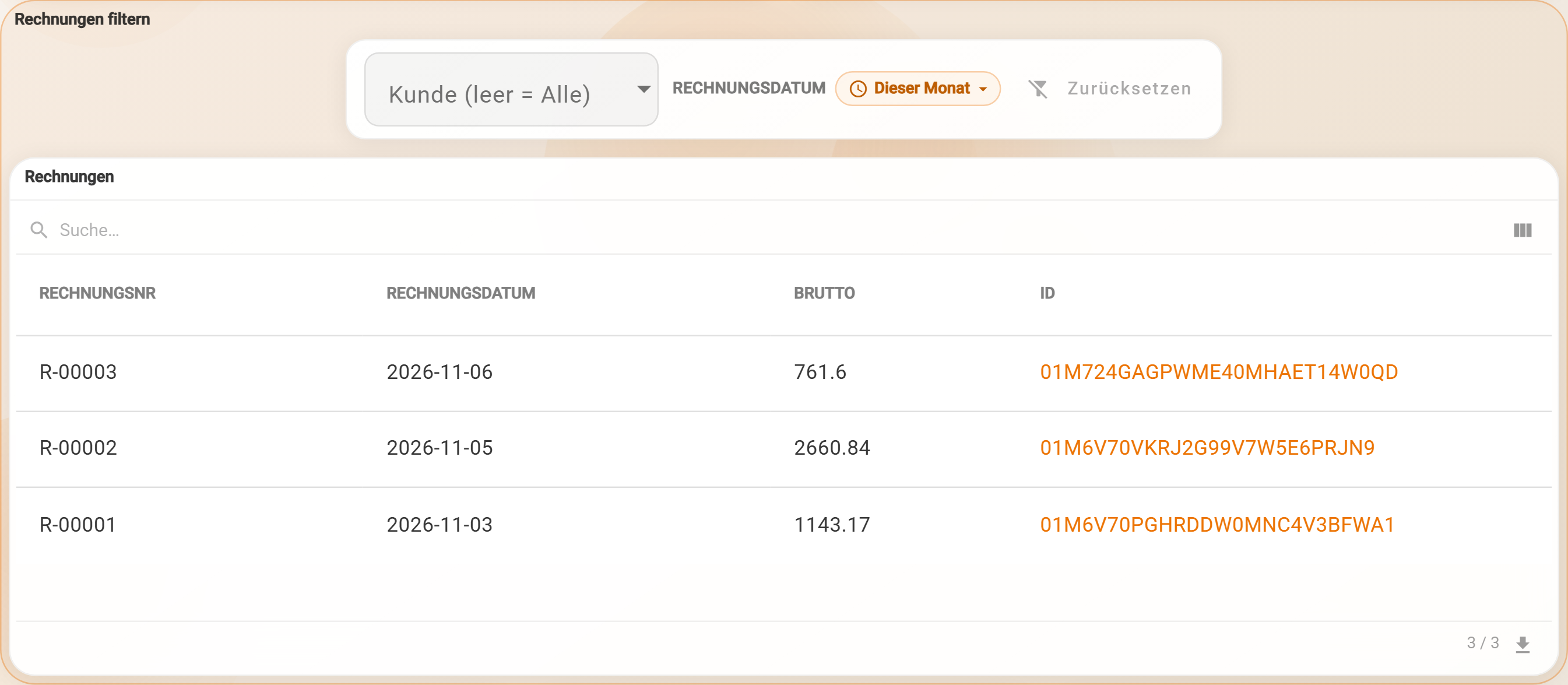
The filter container is a filter bar with an area below it. All widgets that lie completely within this area adopt the filters of the bar. So a customer, a project or a time range is chosen once, and the tables, charts and KPIs below show the same selection.
Typical use cases
| Use case | Filters | Widgets in the area |
|---|---|---|
| Customer overview | Customer, time range | Invoice table, revenue KPI, revenue chart |
| Project controlling | Project, time range | Hours per employee, costs per month |
| Dependent selection | Customer, then an invoice of this customer | Widgets whose query uses the selected invoice |
| Status filter | Option list “offen”, “bezahlt” (open, paid) | Table and KPI |
| Only open items | Yes/No | Table |
Which widgets follow the filter
| Follow the filter | Do not follow the filter |
|---|---|
| Table, Chart, Heatmap, KPI, Text, Planning board | Start, Instances, Create, AI query, Data, Kanban, Timer, Stopwatch, Running timers, Time entries |
The widgets in the left column reload as soon as a filter value changes. They use the filters via placeholders in their SQL query, for example $(kunde.id). How the placeholders are written is described under SQL in widgets.
The widget Record can also follow a record filter; this connection, however, currently cannot be set up in the Designer.
Only what lies completely within its area belongs to the filter container. A widget that only partly reaches into it is outlined in red in the Designer and receives no filters. In the properties panel, Assigned widgets shows which widgets belong to it.
Setting up
- Add the widget Filter container to the dashboard. It is one row high; its area lies below it.
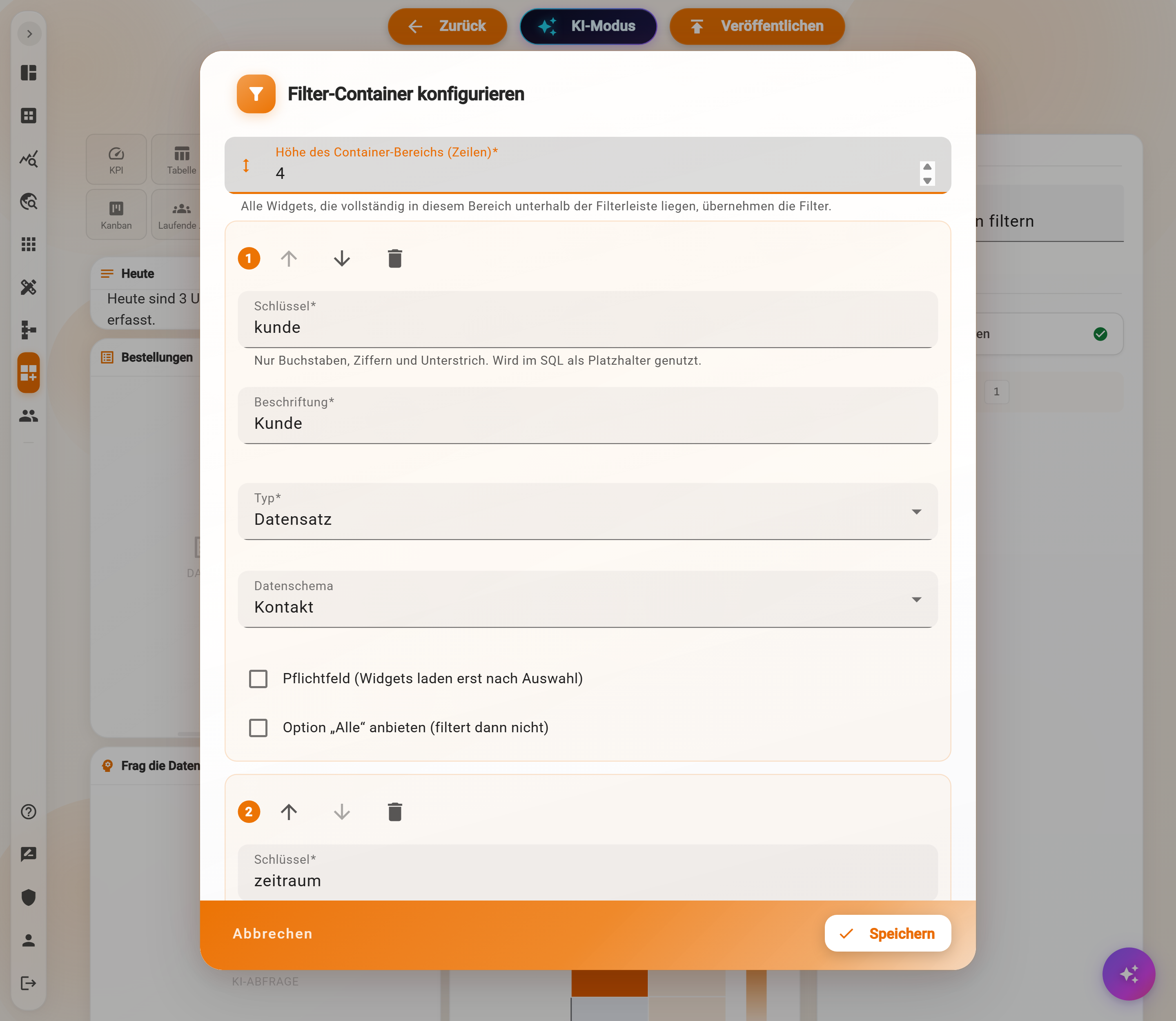
- Choose Configure filters in the properties panel. The dialog Configure filter container opens.
- Set the Height of container area (rows): this many grid rows below the filter bar belong to it. Alternatively, the area is resized in the Designer by dragging its frame.
- Create the filters with Add filter, each with Key, Label and Type (see below).
- Save.
- Place the desired widgets completely in the area below the filter bar and use the placeholders in their SQL query. Under Placeholders for SQL, the dialog shows the matching placeholders to copy, and under Pattern for “All” the condition for the option “All”.
- Publish the dashboard.
Key is the name in the placeholder: only letters, digits and underscore, starting with a letter, for example kunde. Label is the text that viewers see in the bar. Filters without a key are discarded on saving.
Each filter has two switches:
- Required (widgets load only after selection): as long as nothing is selected, the widgets in the area do not load and stay empty without a notice. Text widgets load anyway. If “All” is selected, the filter counts as filled in.
- Offer option “All” (then does not filter): viewers can choose “All”; an empty filter then also counts as “All”. For this, the query must be written following the pattern
($(kunde) = '__ALL__' OR column = $(kunde.id)). The types “Time range” and “Yes/No” do not have this option.
Filter types
| Type | What viewers choose | Settings | Placeholders |
|---|---|---|---|
| Record | a record of a data schema, with search | Data schema | $(kunde) or $(kunde.id), $(kunde.document_name), $(kunde.fieldname) |
| Record via SQL | an entry from a list provided by an SQL query | SQL query for the option list, Preloaded entries | $(kunde) or $(kunde.id), $(kunde.document_name) |
| Time range | a time range | Available time ranges (default all; “Total” is shown as “All” in the bar), Preselected time range (default This month), Custom range (on), Month selection, Year selection | $(zeitraum.start), $(zeitraum.end) |
| Option list | a fixed value | Options, Default value | $(status) |
| Yes/No | on or off | Enabled by default | $(nur_offene) becomes TRUE or FALSE |
The Options of an option list are entered one per line in the format value|Label, for example offen|Offen. The query receives the value, that is offen.
Record via SQL
The query for the option list must return exactly these four columns:
| Column | Meaning |
|---|---|
id |
the value the widget SQL receives via $(key) |
data_schema_id |
the data schema of the entry (the dialog calls it “for the link”; currently there is no link for opening in the bar) |
document_name |
shown in the option list |
search_string |
what is searched while typing – preferably in lower case, several fields may be concatenated |
SELECT id,
       data_schema_id,
       document_name,
       lower(document_name) AS search_string
FROM app_contacts
- The query is extended for the search. A semicolon at the end therefore does not belong in it, and an
ORDER BYcannot be relied on. - Preloaded entries (default 1000) are loaded immediately; beyond that, typing continues the search in the database, up to 50 hits per input.
- A query may use filters that are further up. This creates a dependent selection, for example only the invoices of the selected customer:
SELECT id,
       data_schema_id,
       app_invoice_no AS document_name,
       lower(app_invoice_no) AS search_string
FROM app_invoices
WHERE ($(kunde) = '__ALL__' OR app_recipient = $(kunde.id))
If the customer changes, the selected invoice is reset. If a query refers to a filter further down, the dialog reports “Refers to filters defined later … Filters only take effect from top to bottom.”
Time range
The first time range filter of a filter container applies to all widgets in the area: there it also determines @periodStart and @periodEnd and replaces the own time filter of Table, Chart, Heatmap and Planning board. KPI and Text widget get a selectable time range only this way.
For a date field the time range is used like this: app_invoice_date >= date($(zeitraum.start)) AND app_invoice_date < date($(zeitraum.end)). For a field with date and time, without date(...).
Example: customer and time range for an invoice table
Goal: above an invoice table, a customer (or “All”) and a time range are chosen. The example uses the tables app_invoices (invoices) and app_contacts (contacts) from the Marketplace.
Setting up the filter container:
- Add the widget Filter container, choose Configure filters.
- Height of container area (rows):
5. - First filter: Key
kunde, Label “Kunde” (customer), Type “Record”, Data schema the data schema of the contacts, Offer option “All” on. - Second filter: Key
zeitraum, Label “Rechnungsdatum” (invoice date), Type “Time range”, Available time ranges “This month”, “This quarter”, “This year”, “Total”; Preselected time range “This year”; Custom range, Month selection and Year selection on. - Save.
Placing the table in the area:
- Place the widget Table completely in the area below the filter bar.
- Choose Configure table and enter the query below.
- Test: the test run inserts “All” for the customer so that the columns are determined even without a selection.
- Save and publish the dashboard.
SELECT app_invoice_no AS rechnungsnr,
       app_invoice_date AS rechnungsdatum,
       app_gross_total AS brutto
FROM app_invoices
WHERE ($(kunde) = '__ALL__' OR app_recipient = $(kunde.id))
  AND app_invoice_date >= date($(zeitraum.start))
  AND app_invoice_date < date($(zeitraum.end))
ORDER BY app_invoice_date DESC
What the query does:
$(kunde) = '__ALL__'is true when “All” is chosen or nothing is selected – then the customer condition does not apply.app_recipient = $(kunde.id)compares the reference field of the invoice with the id of the selected contact.date($(zeitraum.start))turns the time range into a date, becauseapp_invoice_dateis a date field.
A KPI “Gesamtumsatz” (total revenue) in the same area automatically follows the selected time range if its query uses @periodStart and @periodEnd.
Notes
- The viewers' selection is stored in the browser and restored the next time the dashboard is opened. Reset in the bar restores the default values. Record filters with the option “All” show the addition “(empty = All)”.
- On the smartphone the bar is shown in a single column, the assigned widgets follow directly below with a colored edge.
- An empty filter without the option “All” becomes
NULL. A condition such ascolumn = $(kunde.id)then finds nothing, and the widget stays empty. - A
$(…)placeholder in a widget outside the area is not replaced – the query fails. - Widgets that do not follow the filter (see above) may still lie in the area; they work as usual.