Account
The Account area (shield icon at the bottom of the left rail) shows which plan the account is on, how much of it has been used in the current month and what that costs. All data of the account can also be exported here as a ZIP archive. Only users with the Administrator role see the entry. The area has two tabs: Plan & Usage and Data Export.
Plan & Usage
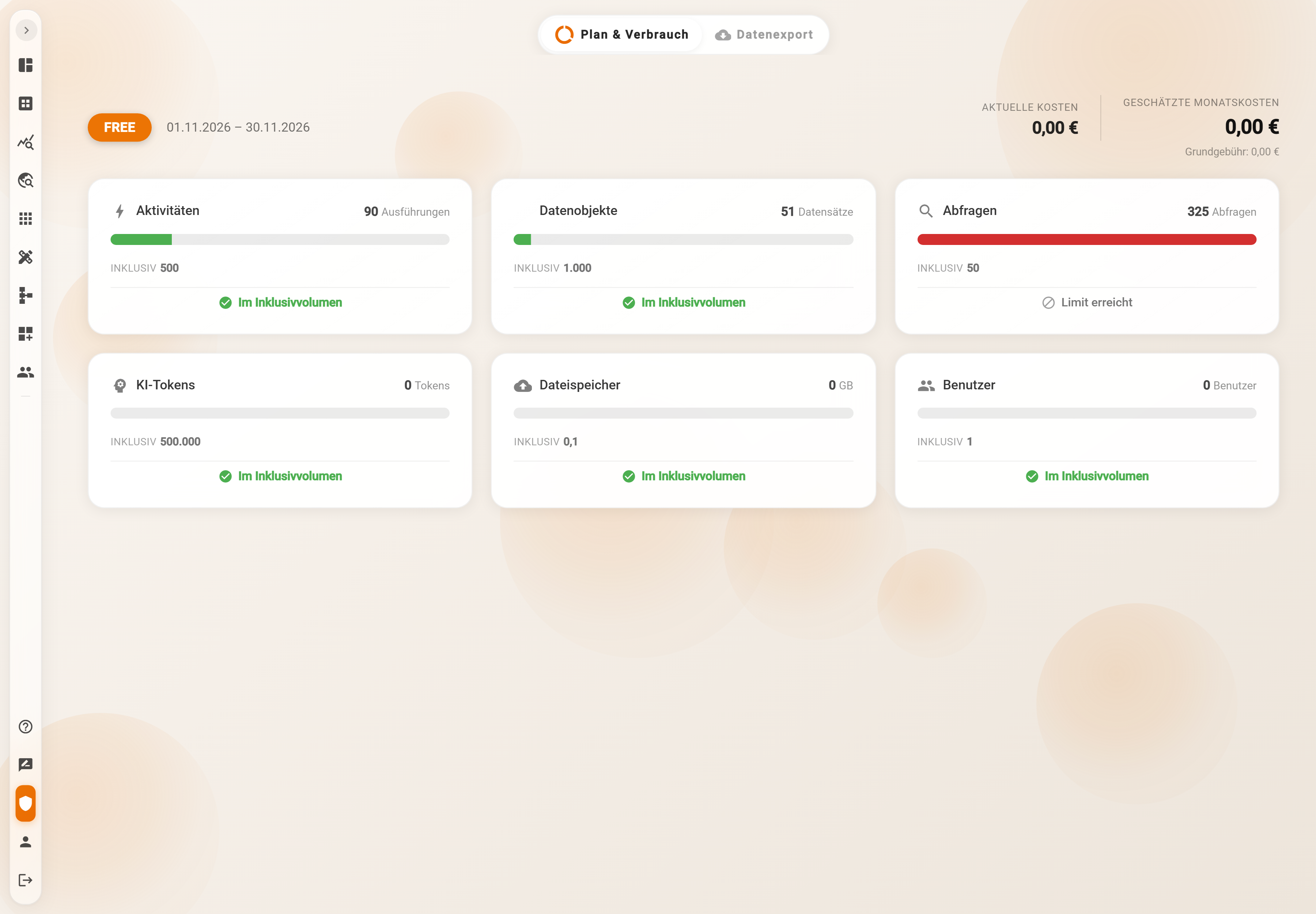
Plan, period and costs
At the top left the plan is shown as a badge: FREE, POC, STARTER, BUSINESS or ENTERPRISE. Next to it the billing period, always the current calendar month, for example "01.11.2026 – 30.11.2026".
At the top right the cost block:
- Current costs: what has accrued so far this month.
- Estimated monthly costs: the projection to the end of the month, broken down into Base fee and + Additional usage.
The monthly base fee depends on the plan: Free and POC 0 €, Starter 25 €, Business 99 €, Enterprise 499 €. Additional usage only arises when a card exceeds its included volume, and only in plans with an overage price.
The six cards
| Card | What is counted | Counting |
|---|---|---|
| Activities | executions of process steps | per month |
| Data objects | stored records | stock |
| Queries | data queries, for example from data analytics or dashboard widgets | per month |
| AI tokens | input and output tokens of the AI functions | per month |
| File storage | storage used by file attachments in GB | stock |
| Users | number of user accounts | stock |
Monthly values start again at 0 on the 1st of each month and are projected into the estimated monthly costs. Stock values show the current state and are not reset.
Each card shows the current value with its unit, a bar and below it Included (the volume contained in the plan) and, if set, Usage limit. The bar colour and the status line say where the account stands:
- green, Within included volume: usage is within the included volume
- blue, +… €: the included volume is exceeded; the excess counts as additional usage
- red, Limit reached: the card's usage limit has been reached
Included volumes per plan
| Plan | Base fee | Activities/month | Data objects | Queries/month | AI tokens/month | File storage | Users |
|---|---|---|---|---|---|---|---|
| FREE | 0 € | 500 | 1,000 | 50 | 500,000 | 0.1 GB | 1 |
| POC | 0 € | 1,000 | 5,000 | 500 | 500,000 | 5 GB | 3 |
| STARTER | 25 € | 1,000 | 10,000 | 1,000 | 1,000,000 | 10 GB | 5 |
| BUSINESS | 99 € | 5,000 | 100,000 | 5,000 | 5,000,000 | 50 GB | 25 |
| ENTERPRISE | 499 € | 15,000 | 300,000 | 15,000 | 15,000,000 | 250 GB | 150 |
Setting a usage limit
In plans with an overage price (Starter, Business, Enterprise) each card has a three-dot menu. It opens the dialog Usage limit: <card>, which defines up to which volume additional usage is allowed:
- Usage limit: the new maximum. It cannot be below the included volume; the dialog shows "At least … (included volume)".
- Included volume, Additional volume (in percent above the included volume), Limit (the maximum cost in € the limit triggers) and Unit price are shown for reference.
- Apply saves, Cancel discards.
Without a value of its own a default limit applies: the included volume plus an additional budget per plan (Starter 10 €, Business 25 €, Enterprise 50 €). The Free and POC plans have no overage price and therefore no menu; there the included volume is also the limit.
A limit does not block anything
A reached usage limit informs, it does not block. Processes keep running, queries are answered, users can be created. The card shows Limit reached and the account owner receives an email.
Notifications
The account owner (the email address the account was set up with) receives an email per card when 50 %, 75 % and 100 % of the included volume are reached – each threshold once per billing period – and another one when the usage limit is reached. The emails link to this page.
Manage subscription
If the account has a subscription, the page shows the Manage subscription button. It opens the billing portal (Stripe) with invoice details and payment method. Without a subscription the button is absent. Invoices are not shown in Pantarey itself.
Data Export
The Data Export tab saves the content of the account as a ZIP archive – for safekeeping, for analysis outside Pantarey or before a test account is reset.
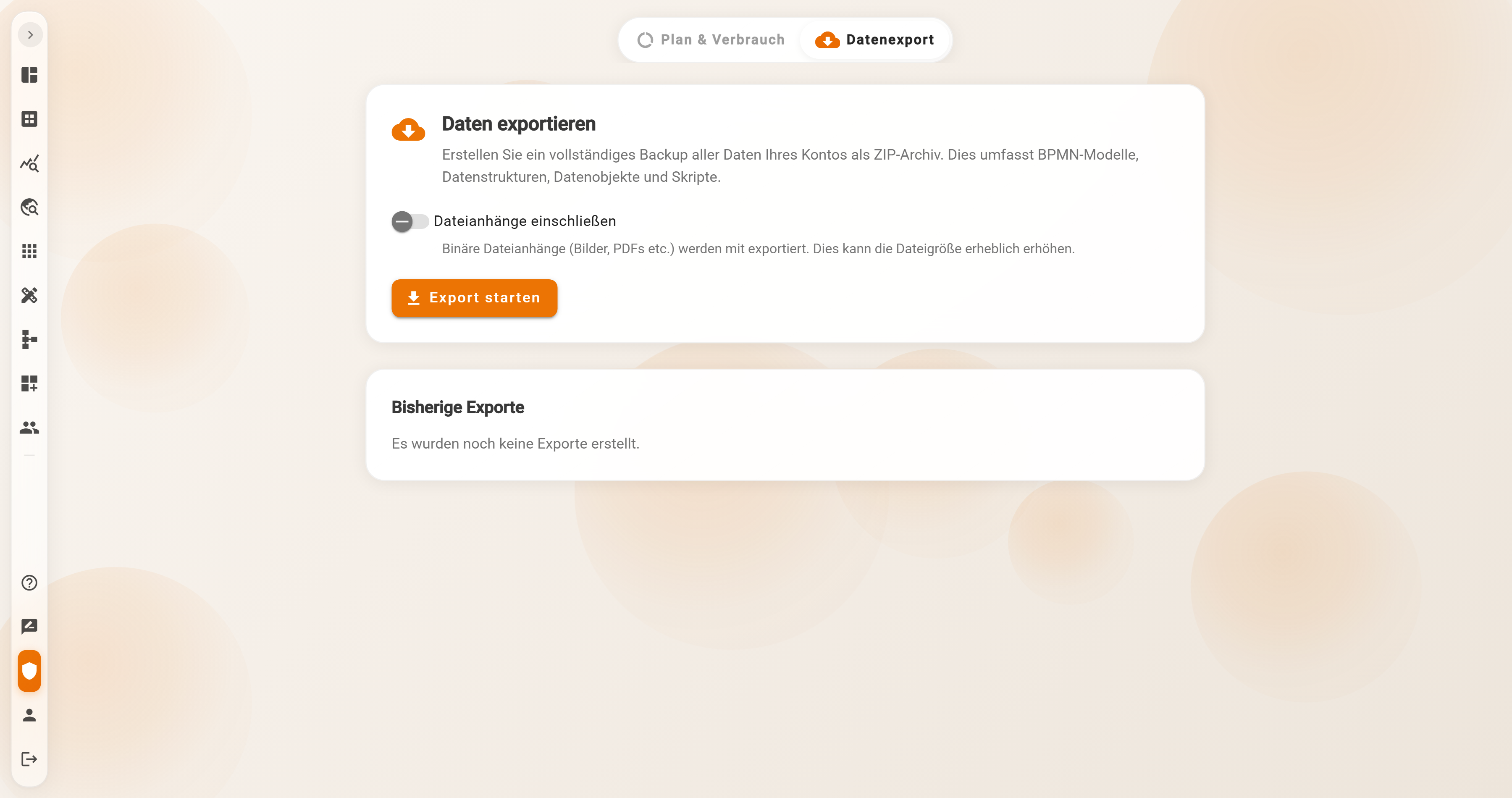
What the export contains
The Export data card creates an archive with:
- process models, deployed versions and drafts
- data schemas and forms
- records per data schema
- scripts
- user management, groups with their assignments and record permissions
- optionally the file attachments
Dashboards, settings and roles are not included.
The Include file attachments switch adds images, PDFs and other files of the records. This can increase the archive considerably; the switch is off by default.
Starting and downloading an export
Start export creates the export; the button reads "Export running…" meanwhile. A progress card walks through the steps Started, Determining data, Collecting data, Creating ZIP (per part for large accounts) up to Completed or Failed. The export continues in the background; the page can be left.
Once the export is finished, Download fetches the archive. Large exports are split into parts of 2 GiB each; the button then reads Download (n parts) and opens the dialog Export from <date> with Download next part (part n). All parts belong in the same folder and are extracted there together. The files are named tenant-export-<date>-teil-01.zip, …-teil-02.zip and so on.
Previous exports
The Previous exports table lists each export with date, status, number of objects, attachments (yes/no), size ("n parts" for multi-part exports) and the download. As long as no export has been started, it reads that no exports have been created yet.
No import
An archive cannot be loaded back into a Pantarey account through the interface. The export serves backup and analysis, not moving between accounts.
Example: Musterfirma GmbH
Musterfirma GmbH is on the BUSINESS plan. In mid-November, Plan & Usage shows 3,200 of 5,000 activities (green), 12,400 data objects of 100,000 and, for Queries, 5,400 of 5,000: the bar is blue, the status line names the additional usage in euros, and the estimated monthly costs are above the base fee of 99 €. The account owner had received an email at 50 %, 75 % and 100 %. The administrator opens the card's three-dot menu, sets the limit to 7,500 in the Usage limit: Queries dialog and applies it. At the end of the year she starts an export under Data Export with Include file attachments; after a few minutes two parts are ready for download, which she extracts into a folder on the company share.
Frequently asked questions
The Account entry is missing from the left rail.
Only users with the Administrator role see the area. Other administration roles such as Manage users are not enough.
What happens when a card shows Limit reached?
Nothing is blocked. The account owner receives an email and the card turns red. Processes, queries and creating users continue. The limit can be raised via the three-dot menu.
Why does a card have no three-dot menu?
The FREE and POC plans have no overage price and therefore no adjustable usage limit. The menu only appears in Starter, Business and Enterprise.
Are the values reset at the start of the month?
Activities, queries and AI tokens start at 0 on the 1st of each month. Data objects, file storage and users are stock values and carry on.
Who receives the usage emails?
The account owner, i.e. the address the account was set up with – regardless of who else is an administrator.
Can an export be loaded back in?
No. There is no import. The archive serves backup and analysis outside Pantarey.
How long does an export take?
That depends on the amount of data. The export runs in the background; the progress card and the Previous exports table show the status, also after reloading the page.
Next step
Reset account: empty test and demo accounts, recreate data tables and rebuild the search index.