Time entries (Time entries widget)
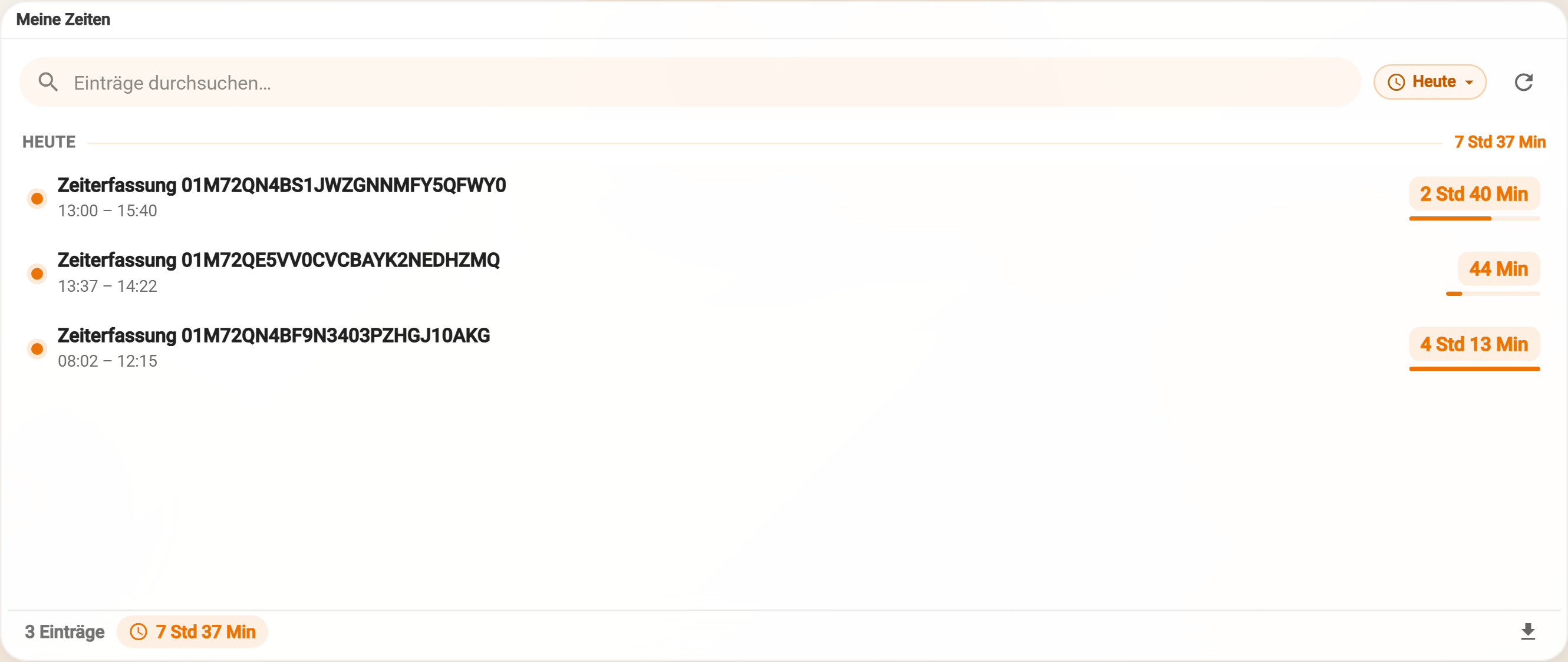
The widget "Time entries" shows the recorded times of a data schema for a selectable period, grouped by day, with daily totals and bars. Usually this is the data schema a Timer or a Stopwatch writes to. Recorded times are thus visible right next to where they are tracked and can be checked and exported without a detour through the database.
Typical use cases
| Use case | Description |
|---|---|
| Own working hours | Every person sees their times of today, this week or this month with a total. |
| Checking project hours | Entries with the name of the project as title and the activity as additional info. |
| Exporting timesheets | Times of a month as an Excel or CSV file for payroll or billing. |
| Overview for managers | View the times of one person or of all people via the employee selection. |
Features
- Grouped by day: Entries appear under "Today", "Yesterday" and the further days, each with a daily total.
- Time range: Via the time range selection next to the search, viewers switch between the offered ranges (Today, Yesterday, This week, This month, This quarter, This year, All); depending on the settings also Month, Year with Whole year … or Custom in the calendar. The browser remembers the choice per viewer.
- Search: "Search entries…" filters the displayed entries, also by the additional columns.
- Total: At the bottom are the summed duration and the number of displayed entries.
- Export: Export as Excel, CSV or JSON (As Excel, As CSV, As JSON) with the columns date, start, end, duration, hours (decimal), reference (with a reference field), employee (with employee selection), the additional columns and document; the entries currently displayed are exported.
- Delete: Optionally a button Delete per entry (visible on hover on a computer) that shows a check mark "Really delete?" and Cancel for confirmation.
- Employee selection: Optionally a selection "Employee" with "All employees" for managers.
- Refresh: The widget reloads when a timer or a stopwatch on the dashboard saves an entry, and via Refresh.
Setup
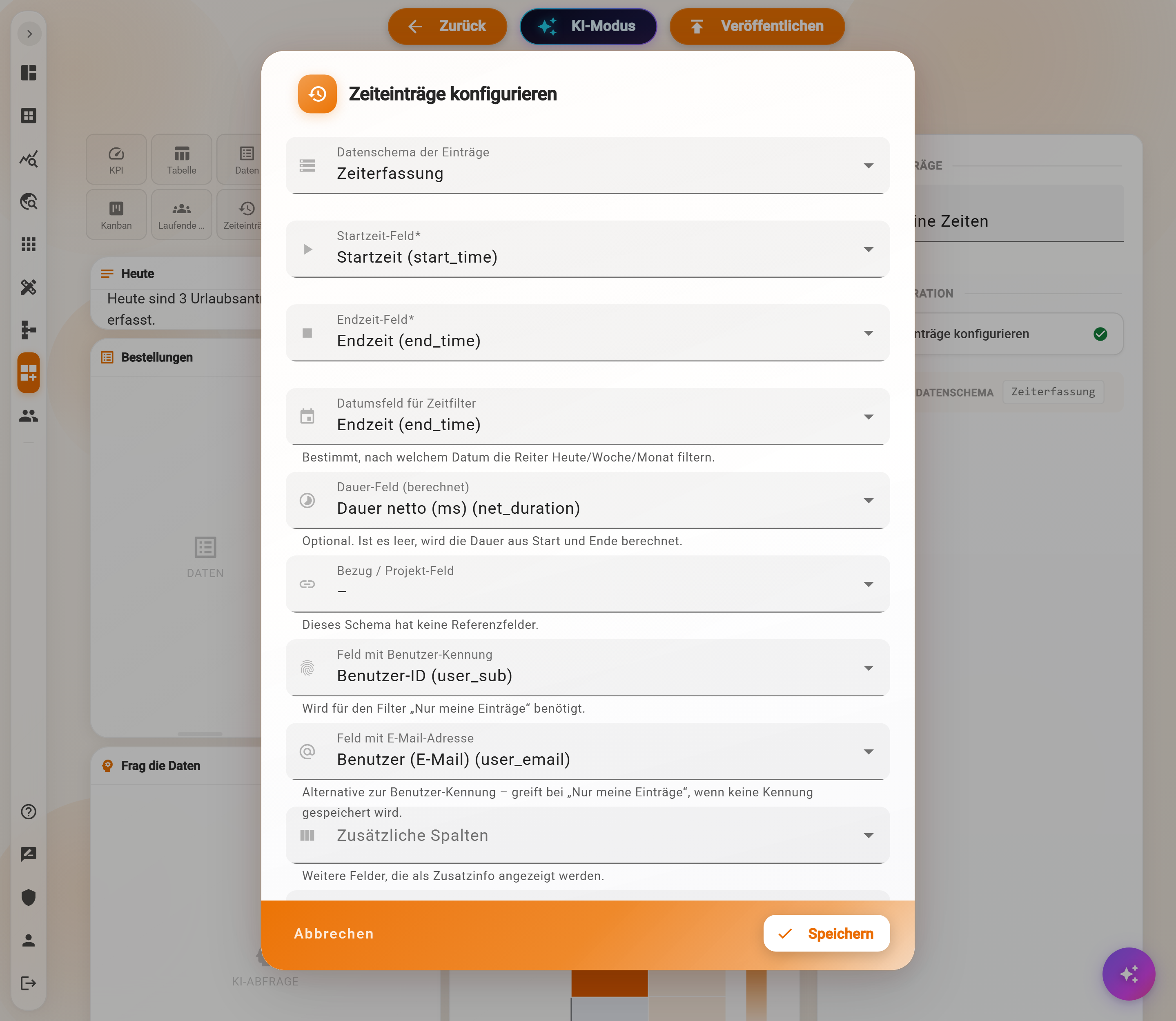
In the properties panel, choose Configure time entries. In the dialog Configure time entries, these settings are made:
| Setting | Meaning |
|---|---|
| Data schema of entries | The data schema with the time entries. Mandatory. |
| Start time field | Field with the start (date with time); start and end are shown as "HH:MM – HH:MM". Only date and date-time fields are offered. |
| End time field | Field with the end (date with time). Must be a different field from the start time. |
| Date field for time filter | By which date the time range and the order are formed. Without a value, the end time applies. The day groups follow the start time if this field is the start time, otherwise the end time. |
| Duration field (calculated) | Optional, calculated fields only. Field with the duration for bars and totals. If it is empty, the duration is calculated from start and end, and pauses then count. Recommended: the net duration, for example "Dauer netto (ms)" (net duration). |
| Reference / project field | Optional. A reference field, for example to projects; the name of the linked record is shown as the title of the entry, otherwise the document name or "No reference". If the schema has no reference fields, the dialog says so. Viewers need read permission on the linked data schema. |
| Field with user identifier | Required for "Only my entries". |
| Field with email address | Alternative to the user identifier for "Only my entries"; prerequisite for the employee selection. |
| Additional columns | Further fields that appear as additional info in a row, searchable and included in the export. |
| Maximum number of entries | Upper limit per time range query, default 500. |
| Additional filter (SQL) | Optional. A condition that is appended to the query with AND (see below). |
| Offered time ranges, Allow month selection, Allow year selection, Allow free calendar selection, Default time range | Which time ranges viewers can choose and which applies on opening. Default: Today, Yesterday, This week, This month; calendar on, month and year off; default time range Today. |
| Only my entries | Shows only entries of the signed-in person. Default on. |
| Show total | Total and count at the bottom edge. Default on. |
| Allow deletion | Delete button per entry. Default off. |
| Employee selection (manager) | Selection of one person or of all people; every entry then shows the email address. Needs the email field and the permission to read the user directory; otherwise the selection stays invisible. Not together with "Only my entries". |
Additional filter (SQL)
The additional filter is an SQL condition on the columns of the data schema of the entries, without WHERE, for example:
taetigkeit <> 'intern'
@currentUserEmailand@currentUserSubare written in quotes:user_email = '@currentUserEmail'.@periodStartand@periodEndcurrently always refer to the current month here, not to the time range chosen in the widget. The time range is already handled by the widget itself.$(…)placeholders of a filter container are not replaced here and make the query fail.
Notation for dates, timestamps and placeholders: SQL in widgets.
Example: my working hours this month
The starting point is a Stopwatch that writes working hours to the data schema "Arbeitszeit" (working time, table work_time), with the fields start_time, end_time, net_duration, user_sub and user_email.
- Place the widget Time entries next to the stopwatch, choose Configure time entries.
- Data schema of entries: Arbeitszeit.
- Start time field
start_time, End time fieldend_time, Date field for time filterstart_time. - Duration field (calculated):
net_duration, so that pauses do not count. - Field with user identifier
user_sub, Field with email addressuser_email. - Only my entries on, Show total on, Allow deletion off.
- Offered time ranges: Today, This week, This month; Allow free calendar selection and Allow month selection on; Default time range: This month.
- Save and publish the dashboard.
Result: every person sees their own times of the current month grouped by day; the total at the bottom shows the net working time of the month. After every stop of the stopwatch, the new entry appears automatically.
Notes and limits
- "Only my entries" needs a user field. If neither "Field with user identifier" nor "Field with email address" is set, the widget shows all entries the person is allowed to read.
- Future entries: Today, This week, This month, This quarter and This year only have a lower bound. Entries with a date in the future appear there as well; Yesterday, Month, Year and the calendar selection have both bounds.
- Pauses: Without a duration field or with the gross duration, pauses count as working time. For the real working time, choose the field with the net duration.
- Upper limit: More than the "Maximum number of entries" are cut off without notice; the total is then too low. For long time ranges, raise the limit.
- No filter container: The widget does not follow a Filter container.
- States: "No data schema configured", "No entries in the selected period" and "Entries could not be loaded" with Refresh; at the bottom it counts "n entries".