Example: Reorder Office Supplies
A Simple Process: Practical and Ready to Use
This example shows how to create a simple process in Pantarey to efficiently reorder office supplies.
Instead of processing orders via email or paper chaos, users can request missing work materials directly digitally. The order is saved and reported to the purchasing department.
Goal of the Example
- Create a custom data structure for material orders.
- Create a process that processes form inputs.
- Automatically trigger an email notification to purchasing.
- Save the inputs in the database.
- Track and test the entire workflow in Pantarey.
Prerequisites
- Access to the Pantarey environment (
https://[YourCompany].pantarey.io). - Permission to create processes and data structures.
Step 1: Create Data Structure "Material Order"
First, a new data structure is created where the orders will be stored.
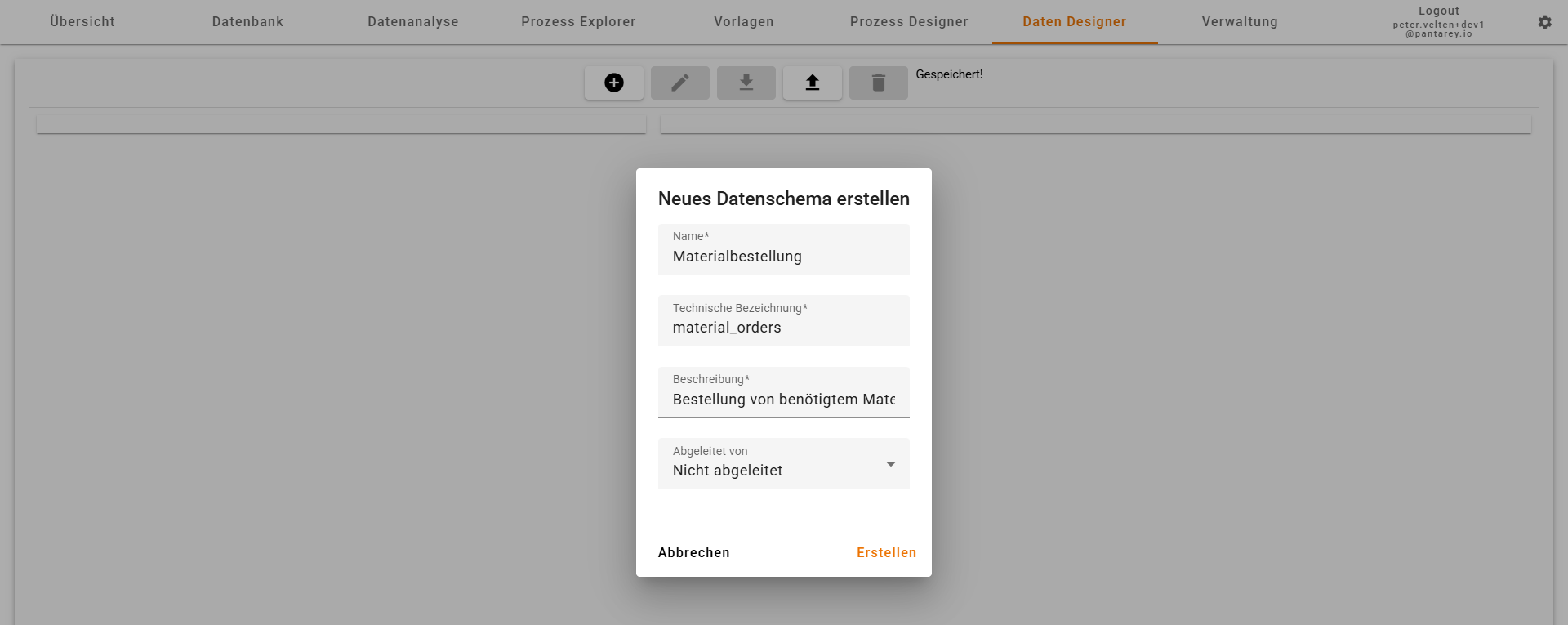
1.1 Create New Data Schema
In the Data Designer area, a new data schema is created and the plus symbol (+) is clicked.
Information:
- Name: Material Order.
- Technical Name: Automatically filled (adjustable).
- Description: Automatically filled (adjustable).
1.2 Create Attributes
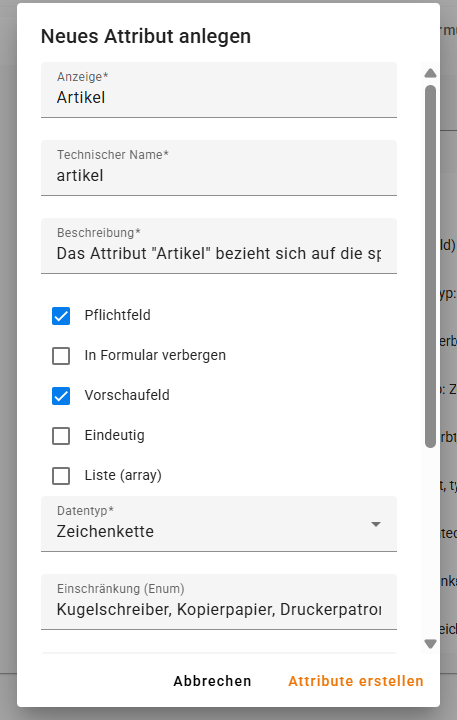
After creating the schema, the required attributes are added.
Attribute 1: Item
- Name: Item.
- Type: Selection (ENUM).
- Required field: Yes.
- Values: Ballpoint pen, Copy paper, Printer cartridges.
Attribute 2: Quantity
- Name: Quantity.
- Type: Integer.
- Required field: Yes.
After creation, the attributes should look as follows:

Step 2: Create Process "Material Order"
2.1 Create New Process
In the Process Designer, + New Process is clicked.
- Name: Material Order.

2.2 Configure Start Event
- Name: Reorder office supplies.
- Form: Material Order.
- User: Current user (suitable for testing).
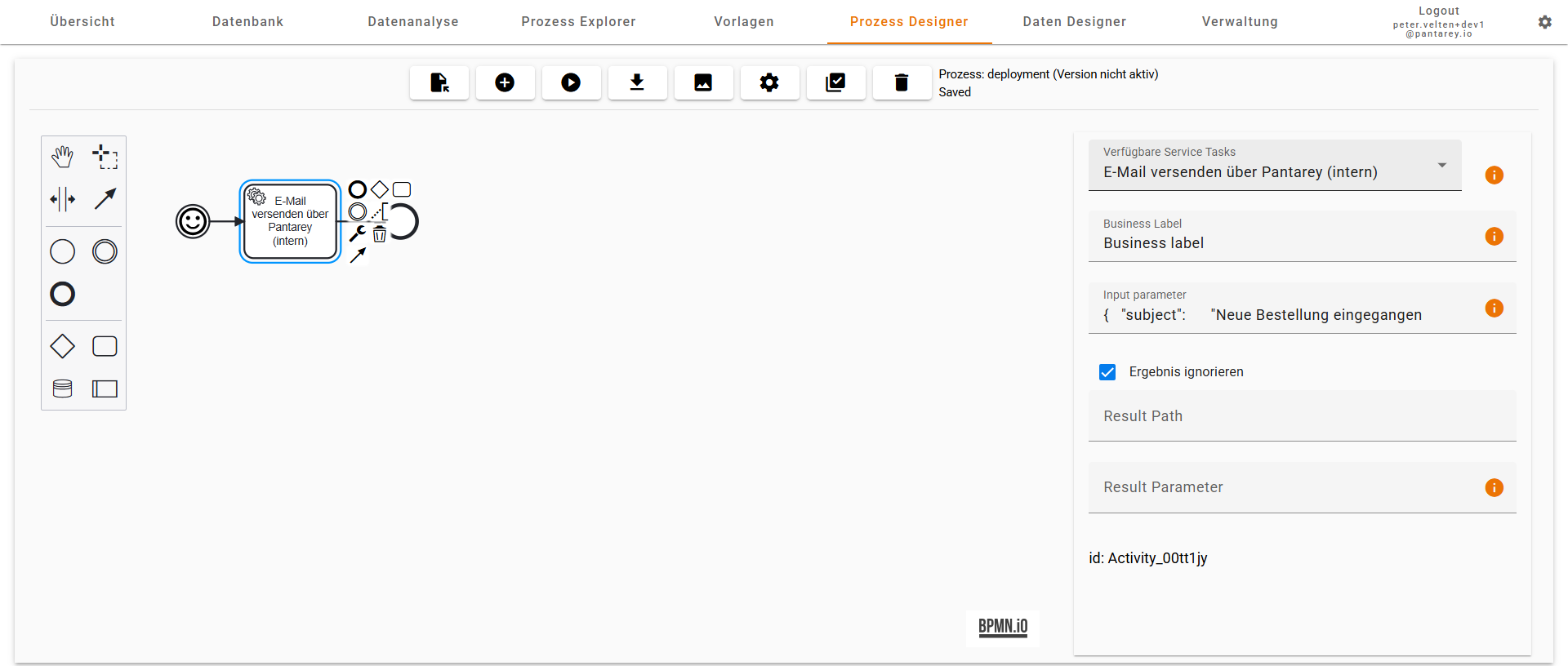
2.3 Service Task: Send Email
- Task: Send order via email.
- Service: Send email via Pantarey (internal).
- Ignore result: Activated.
2.4 Save Data
- Task: Save order data.
- Action: Save to database.
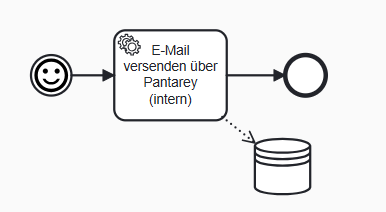
The process is now complete:
- Start via a form.
- Email sending.
- Storage of order data.
Step 3: Test Process
- The process is started and the form is filled out.
- It is checked whether the email was sent and the data is saved.
Outlook
This simple process can be expanded as desired:
- Add approval to authorize orders above a certain value.
- Add a user task instead of immediately sending an email.
- Expand item management to automatically check material inventories.