Managing Secrets (Secrets Management)
Overview
With Secrets Management, sensitive credentials (e.g., passwords, API keys, tokens) are securely managed centrally and deployed at runtime in processes.
Summary
Secrets are created once and only referenced in the process, e.g., in a Service Task via {{secret:FTP_PASSWORD}}.
When a password changes, only the secret is updated; running and future process executions automatically use the current value.
Why this is helpful
This keeps BPMN models free of plaintext credentials, while changes become effective without redeployment.
Video (YouTube)
Benefits
- 🔐 Security: Secrets are stored encrypted and never displayed in plaintext. Resolution occurs "just-in-time" at runtime.
- ♻️ No duplicates: Same credentials are maintained centrally and reused multiple times.
- ⚙️ Central management: Passwords are changed in one place; all processes automatically use the current version.
- 🔎 Transparency: Shows which processes use a specific secret.

Creating and Managing Secrets
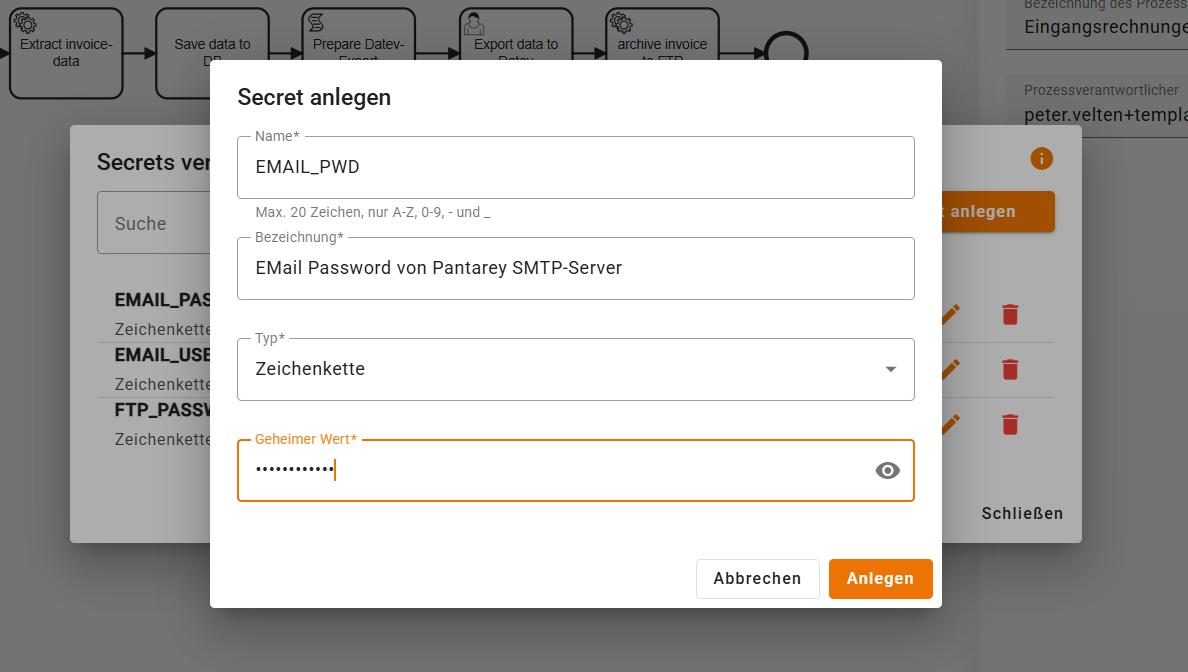
Creating a New Secret
- Open the Process Designer.
- Select the key icon (Secrets Management) in the toolbar.
- Select Create Secret.
- Fill in the form:
- Name: unique identifier (e.g.,
EMAIL_PASSWORD). The name is immutable. - Display name: readable name for the overview.
- Type: type of secret (e.g., Password, API-Key, Token). The type serves for structuring and optional validation but has no impact on encryption.
- Value: secret value (stored encrypted).
- Name: unique identifier (e.g.,
- Select Create.
Note
The secret value is not displayed in plaintext after saving.
Editing a Secret
- Select the pencil icon next to the secret.
- Display name, Type, and Value can be changed.
- For pure metadata changes, the value field remains empty.
- Changes are logged with timestamp and user.
- Changing the value does not require redeployment.
Deleting a Secret
- Select the trash icon.
- Confirm the security prompt.
Warning
If a secret is deleted, process executions that reference this secret will fail.
Using Secrets in BPMN Processes
Syntax
Placeholders are used in the format {{secret:NAME}} in supported fields (e.g., Service Task / Script Task Input) in the input parameter:
{
  "credentials": {
    "username": "{{secret:TEAMBEAM_USERNAME}}",
    "password": "{{secret:TEAMBEAM_PASSWORD}}"
  }
}
- Secrets are resolved at runtime
- Replacement occurs server-side
Important
Resolution occurs at runtime. The BPMN model contains no plaintext credentials.
Example Fields for Using Secrets
- TeamBeam Upload/Download:
credentials.user,credentials.password,credentials.url - DHL Shipment Tracking:
login.username,login.password,login.apiKey - FTP Upload/Download:
FTPAccess.user,FTPAccess.password,FTPAccess.host,FTPAccess.port
Example: FTP Upload with Secrets
{
  "FTPAccess": {
    "host": "{{secret:FTP_HOST}}",
    "port": "{{secret:FTP_PORT}}",
    "user": "{{secret:FTP_USERNAME}}",
    "password": "{{secret:FTP_PASSWORD}}"
  },
  "sourcePath": "/data/export.csv",
  "targetPath": "/import/export.csv"
}
Tracking Secret Usage
Where is a Secret Used?
- Open Secrets Management.
- Select the down arrow next to a secret.
- The following is displayed:
- which BPMN processes use the secret
- in which activities (tasks) it is used
- Click the process name to open the process in the Process Designer.
Note
Usage is analyzed during deployment, not when saving the model.
Best Practices
Naming Conventions
- A uniform style is recommended. Example:
FTP_PASSWORD - A prefix per system is recommended:
TEAMBEAM_API_KEY - Keep names short (max. 20 characters)
Security
- Never share secrets via copy/paste in Slack, email, etc.
- Change passwords regularly and update the secret
- Check usage before deleting
Process Design
- Document in the task description which secrets are needed
- Test affected processes after secret changes
- Use meaningful secret names (not
SECRET_1,SECRET_2)
Troubleshooting
"Secret not found" Error During Process Execution
Cause: The secret was deleted or renamed
Solution: 1. Check in Secrets Management whether the secret exists. 2. Open the affected process. 3. Correct the secret name in the task. 4. Redeploy the process.
Secret is Not Replaced
Cause: Wrong syntax or position
Solution:
- Check syntax: {{secret:NAME}} (no spaces).
- Secrets only work in supported fields.
- Not all tasks support secrets.
Secret Usage is Not Displayed
Cause: Process has not been deployed yet
Solution: - Usage is only captured during deployment. - Deploy the process; afterwards it will appear in the list.
FAQ – Frequently Asked Questions about Secrets Management
Can secrets be used in multiple processes?
Yes. Secrets are centrally available and can be referenced in any number of processes.
Are secret values displayed or logged during process execution?
No. Sensitive values are not logged in plaintext. Resolution occurs "just-in-time" at runtime.
Can secrets be used in User Tasks?
No. Secrets are only resolved in supported technical fields (e.g., credentials/passwords/API keys) to enforce secure usage.
How long can a secret value be?
The value can technically be very large; a maximum of 4096 characters is recommended.
Can secrets be exported or copied?
No. Secret values are not readable after saving and are not exported.
How many secrets can be created?
The number is not limited. Any number of secrets can be created.
Does using secrets incur additional costs?
No. Secrets do not incur additional costs.
Can secrets be deleted even if they are in use?
Yes. A secret in use can be deliberately deleted. This causes process executions that reference this secret to fail. This allows access to be specifically and "hard" blocked.
How does secret resolution scale with many accesses?
Resolution occurs server-side at runtime and is designed for a high number of parallel accesses.
Technical Details (for Administrators)
Encryption
- Secrets are encrypted using a KMS (Key Management Service)
- Encryption occurs automatically upon saving
- Decryption only at runtime "just in time"
Permissions
The role Create processes or admin is required for all secrets functions.