Manage First Data
This chapter explains how to create and use custom data structures in Pantarey.
🔗 Detailed information can be found in the chapter Create Data Structures.
Importance of Data Structures in Pantarey
Data forms the foundation of many business processes. Pantarey makes it possible to create individual data structures and manage records flexibly.
A data structure in Pantarey fulfills several central tasks:
- Validation of entered information.
- Automatic generation of forms.
- Creation of data tables for evaluations.
Through this architecture, processes and data can be seamlessly combined – without external tools or additional systems. Complex data integration can thus be avoided.
Data in Pantarey
Data is managed in a structured way in Pantarey. A data structure defines which information is stored and how it relates to each other.
Examples of data structures:
- Customers.
- Products.
- Inquiries.
- Projects.
- Articles.
- Addresses.
- Invoices.
- Applications.
Each structure consists of fields with different data types (e.g. text, number, date).
Creating a New Data Structure
Creating new data structures is done in the Data Designer area.
Steps:
1. Navigation area
- The menu item Data Designer is selected.
2. Create new data structure
- The "New" button is clicked.
3. Name, technical name and description
- Name: An understandable designation is assigned.
- Technical name and description: Suggestions are automatically generated by AI and can be adjusted if needed.
4. Organize data structures
- Left side: Hierarchical arrangement of data structures is possible (e.g. "Contact" → "Person" / "Organization").
- Further details can be found in the chapter Inheritance and Hierarchies.
5. Manage attributes
- Right side: Creating and moving fields (attributes).
- Fields such as name, email or address are added.
- Changes are automatically saved.

Attributes in Detail
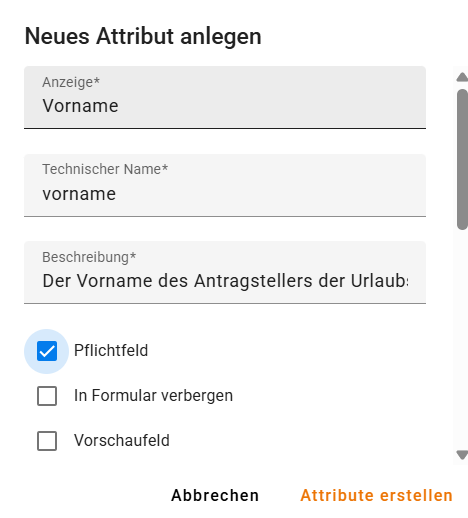
When creating a new attribute, the following information is defined:
- Name and technical identifier.
- Data type (text, number, date, reference to other structures).
- Required field setting.
- Visibility in the form.
- Restrictions (e.g. selection from fixed values – ENUM).
Note: Via the data type "reference", relationships between records can be established (e.g. invoice → invoice recipient → address).
Document Name
In the header area of each structure, a document name can be defined:
- The document name determines how records are displayed in the overview.
- Example: "Max Mustermann (max@firma.de)".
Further information about the document name can be found in the chapter Preview Field and Document Name.
Advanced Functions in Data Designer
In addition to attribute definition, the Data Designer offers other important tabs:
| Tab | Function |
|---|---|
| Forms | Display of automatically generated forms for data entry. |
| Permissions | Fine-grained control of access to the records of the respective structure. |
| Actions | Execution of mass data changes and future automations. |
Export and Import of Data Structures
- Existing data structures can be exported or imported in JSON Schema format.
- The corresponding buttons for export and import are located in the navigation bar.
⚠️ Warning: When deleting a data schema, all associated data is permanently deleted. This function should be used carefully.
Using Data in Processes
Data structures are seamlessly integrated into processes in Pantarey:
- Selection of forms in the start event of a process.
- Automatic form display for user input.
- Storage of process data according to the defined structure.
- Use in conditions, decisions and evaluations.
Examples for Practical Use
| Example | Description |
|---|---|
| Vacation Request | Capture of a request via a generated form. |
| Invoice Creation | Selection of existing customer data in a process. |
| Order Processing | Dynamic assignment of products to orders. |
Summary
Pantarey enables the quick and consistent creation of custom data structures. Through automatic form creation, flexible use in processes and central data storage, an efficient and scalable way of working is supported.
The next section explains how processes in Pantarey can be extended and expanded with tasks and decisions.